Link Payment Methods in orderbird PRO with fiskaltrust in the Basis Paket

Table of Contents
Now you’ll link your payment methods with the payment types provided by fiskaltrust. This step is necessary so fiskaltrust knows on which of your invoices a QR code should be printed and on which it shouldn’t. The law differentiates between different types of payments.
Clear Assignment of Payment Methods in fiskaltrust
All your payment methods must be clearly assigned to a payment type in fiskaltrust; otherwise, your invoices cannot be correctly signed. Without this assignment, your cash register will not be RKSV-compliant!
Step by Step
- In orderbird PRO, go to “Einstellungen” (Settings) > “fiskaltrust” > “fiskaltrust Einstellungen” (fiskaltrust Settings) > “Zahlarten” (Payment Methods).
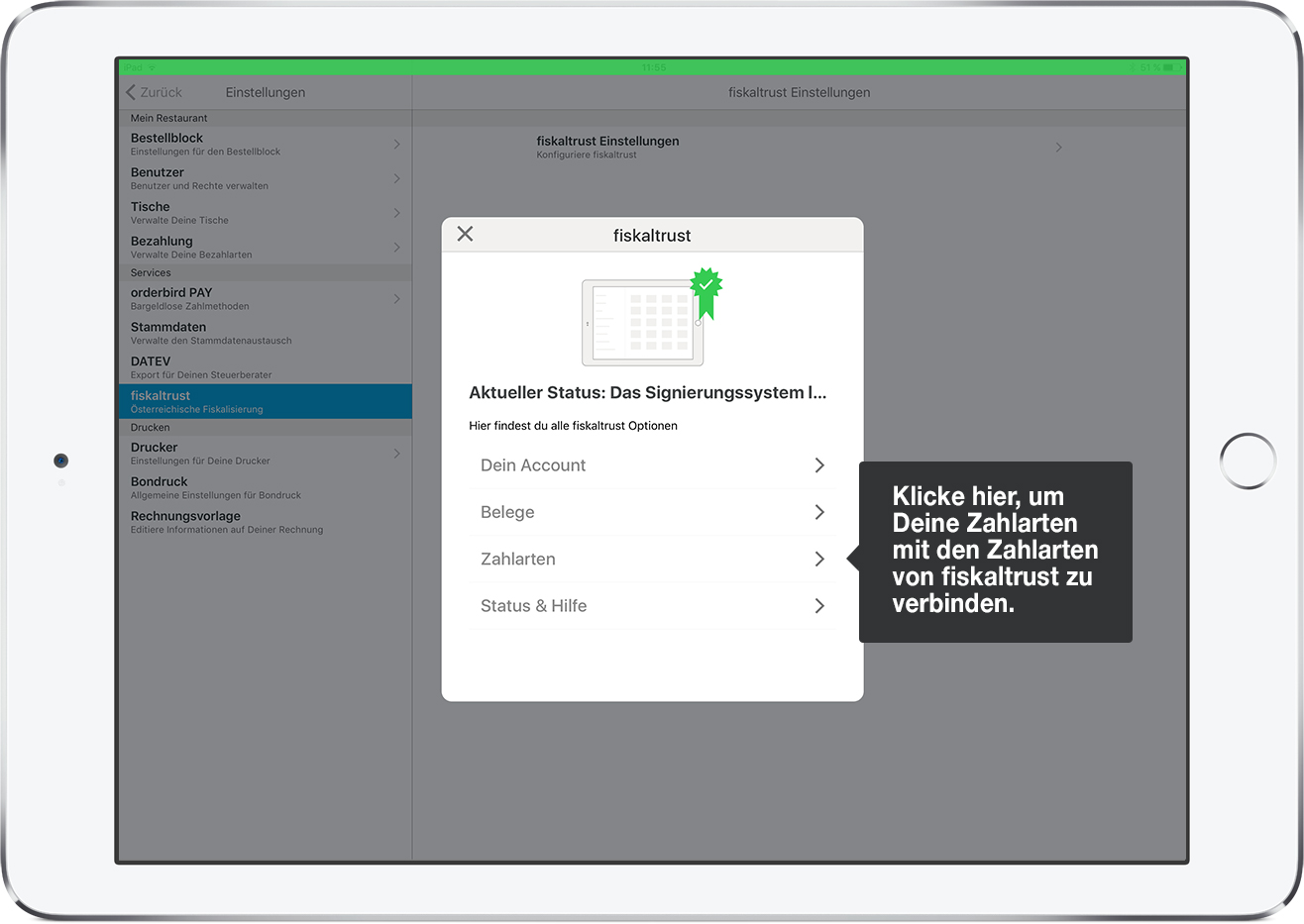
- In the next step, you’ll see a list of all the payment methods you’ve set up in orderbird PRO.
- Click on each payment method one by one to clearly assign them to a corresponding payment type in fiskaltrust. Use our assignment table as a guide.
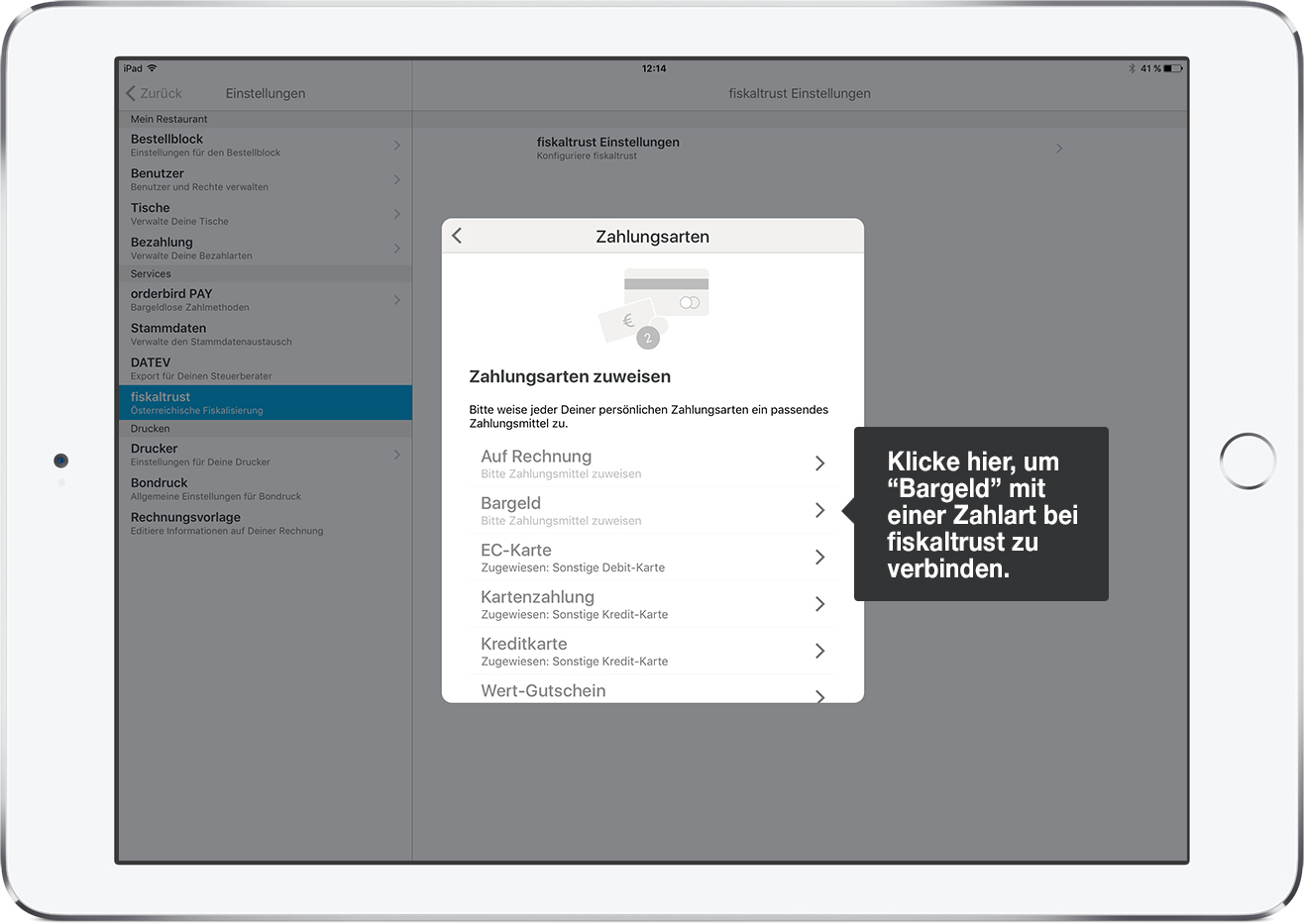
- Once the text "Zugewiesen: ..." (Assigned: …) appears under each payment method, you’re done. Finally, please double-check using the assignment table to ensure all payment methods are correctly assigned.
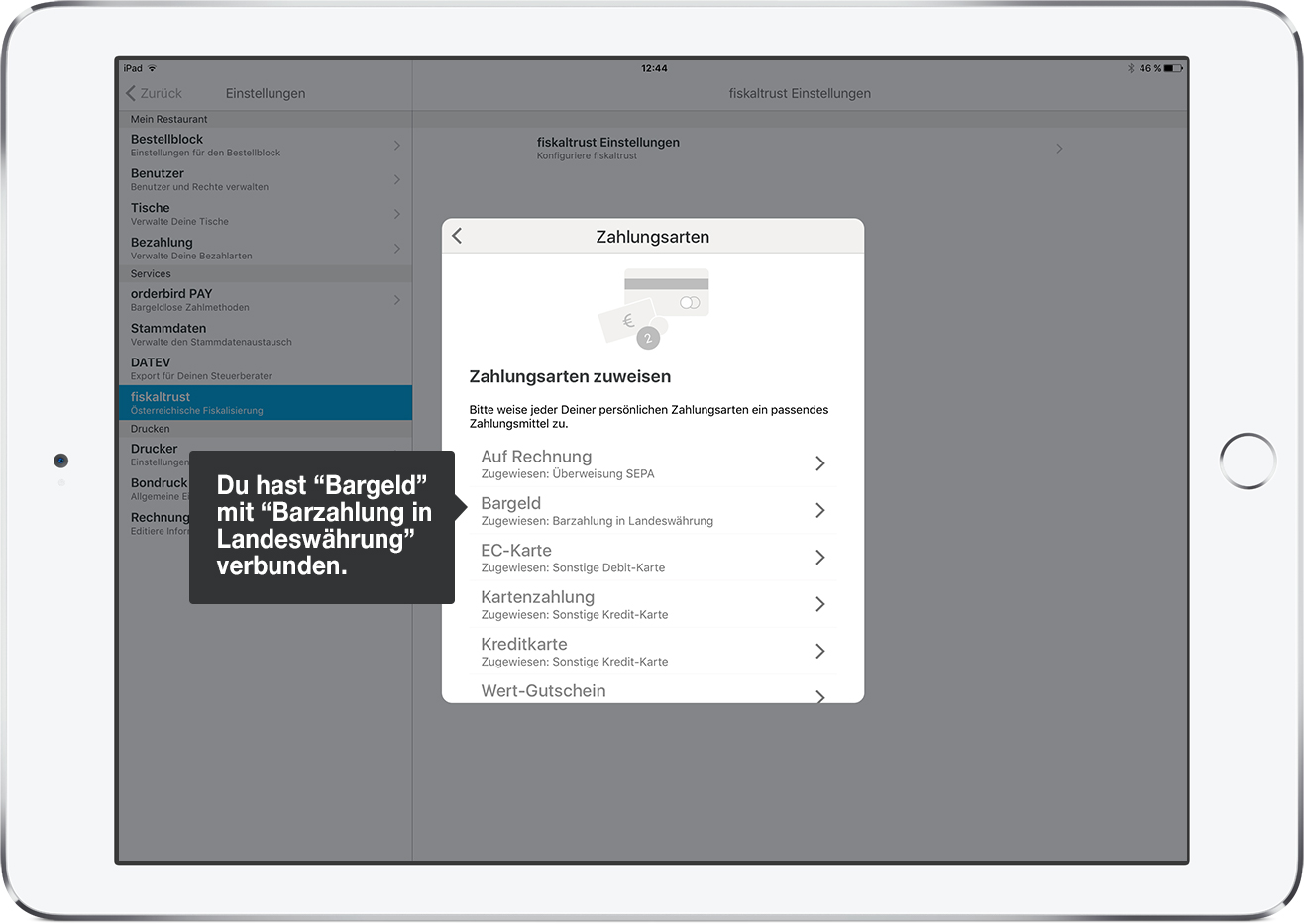
Assignment Table
How to link your payment types with the payment types from fiskaltrust:
Your Payment Type in orderbird PRO |
Corresponding Payment Type at fiskaltrust | QR Code on Invoice? | Notes |
| Cash | Cash Payment in National Currency | Yes | - |
| “Kartenzahlung” (Card Payment - orderbird Pay) | Other Credit Card | Yes | Applies to all card types, whether debit or credit, for cashless payments with orderbird Pay |
| “Kreditkarte” (Credit Card) | Other Credit Card | Yes | For cashless payments via third-party card terminals using credit card |
| “Debitkarte” (Debit Card) | Other Debit Card | Yes | For cashless payment via third-party card terminals with debit cards |
| “Wert-Gutschein” (Voucher) | Voucher Payment (Coupon) | Yes | Payment method for redeeming a voucher. |
| “Auf Rechnung” (On Invoice) | SEPA Bank Transfer | No | - |
Good to Know
As soon as an invoice only contains expense items (e.g., when a customer buys a value voucher but doesn’t redeem it and pays in cash), no QR code will appear on the invoice since no taxes are due on expense items.
Congratulations!
You’ve successfully completed all the steps! You’re now the proud owner of an upgraded, RKSV-compliant cash register.
What's Next?
Please remember to print a “Monatsbeleg” (monthly receipt) at the end of each month and a “Jahresbeleg” (annual receipt) in December, for the "Finanzamt" (tax office). It’s best to set a reminder in your calendar now or ask your tax advisor to take care of this.
Internet Connection is Mandatory
To remain RKSV-compliant, your cash register must always be online during operation, or at least connect to the internet every 48 hours. Specifically, you must reconnect your cash register to the internet no later than 7 days after a 48-hour outage so that invoice data can sync.
Do you have any questions or encounter a problem during operation? Find your answer at support.orderbird.com or e-mail us to help@orderbird.com.