Contact Us

If you still have questions or prefer to get help directly from an agent, please submit a request.
We’ll get back to you as soon as possible.

Please fill out the contact form below and we will reply as soon as possible.

  • Knowledge Base MINI
  • Contact us
English (US)
US English (US)
DE German
  • Home
  • Expand your orderbird PRO
  • orderbird PRO Cashbook
  • Your daily interaction with your orderbird cashbook

How do I enter cash withdrawals in the cash book?

Written by Jens B.

Updated at September 25th, 2024

Contact Us

If you still have questions or prefer to get help directly from an agent, please submit a request.
We’ll get back to you as soon as possible.

Please fill out the contact form below and we will reply as soon as possible.

  • First Steps
    Hello new Bird! About your Apple devices Step 1: How to set up your network Step 2: MY orderbird Step 3: How to install and set up the app Step 4 - How to serve your first guest Step 5 - Card payment with orderbird PRO
  • Working with orderbird PRO
    Working Settings Fiscalization in Austria (RKSV) "Kassensicherungsverordnung" in Germany orderbird PRO - Versions and Updates
  • Card payment
    Your start with card payment with orderbird PRO and Worldline Your start with card payment with orderbird PRO and Nexi Germany Your start with American Express Working with orderbird card payment Pay Terminal Plus (WiFi card reader) Pay Terminal One (Bluetooth card reader) Card payment on the smartphone
  • Analyze your sales
    Reports on orderbird PRO The DATEV export Reports on MY orderbird
  • Printer & Network
    Printer Network
  • Expand your orderbird PRO
    orderbird PRO Cashbook orderbird Gift Cards Bestellmanagement
  • MY orderbird - Your orderbird business account
    Your account settings on MY orderbird
+ More

Table of Contents

Step by step Export Receipt Photos? Regarding Legal and Tax Advice

You are obliged to enter all cash withdrawals in the cashbook. These are e.g. the payment of a supplier, a private withdrawal or if you take cash from the cash register to make a deposit to your business account. You must also enter the theft of cash or tips in your cash book! No matter what the reason for a cash withdrawal is, document it carefully in and create a receipt for your cash book!


Step by step

  1. In the cash book tap on the "+" symbol next to the option "Outgoing Cash". 
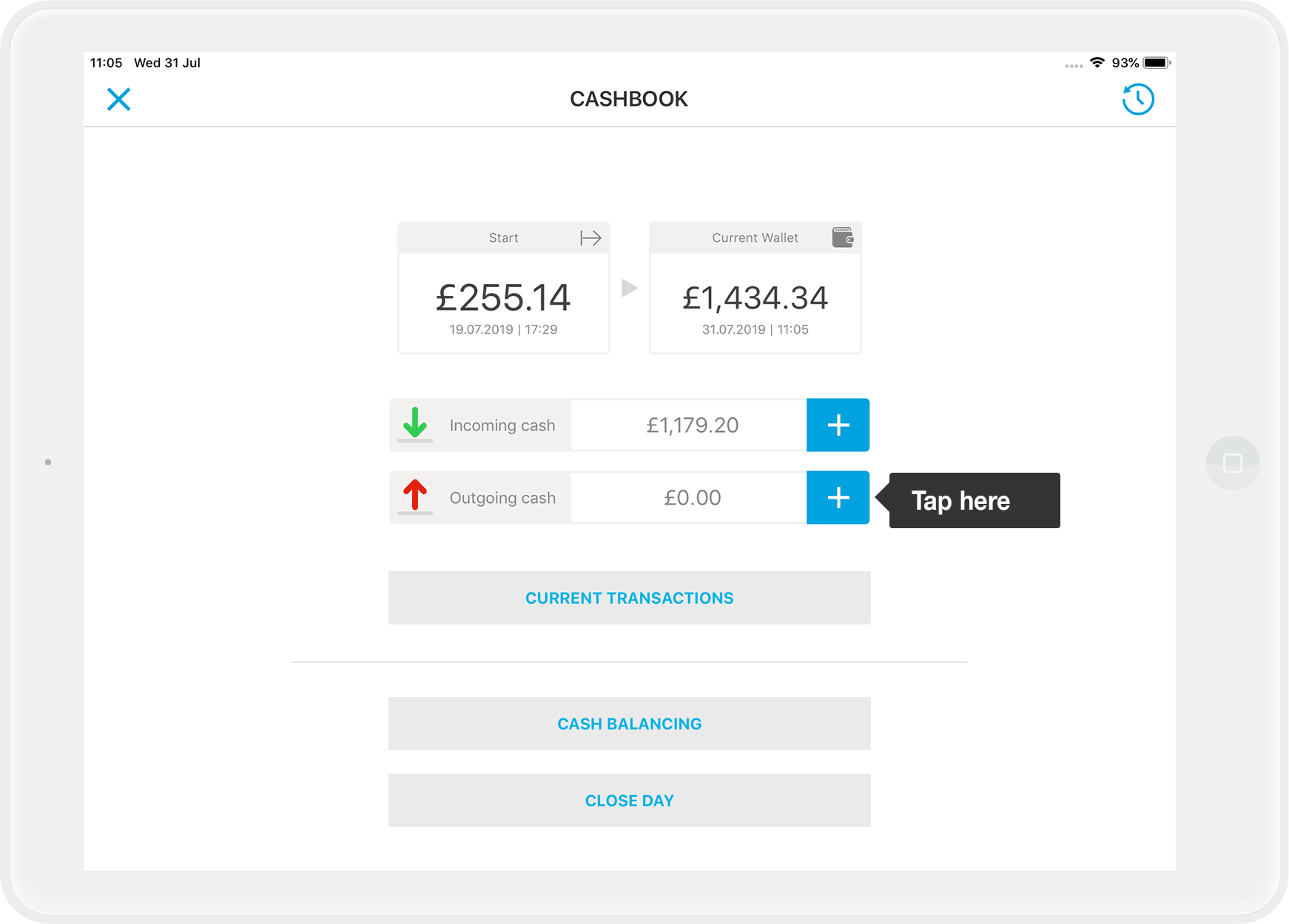
    EN_ob_6.1.1_outgoing_cash_01.png
  2. Then select the type of issue (mandatory field). For example "Delivery". 
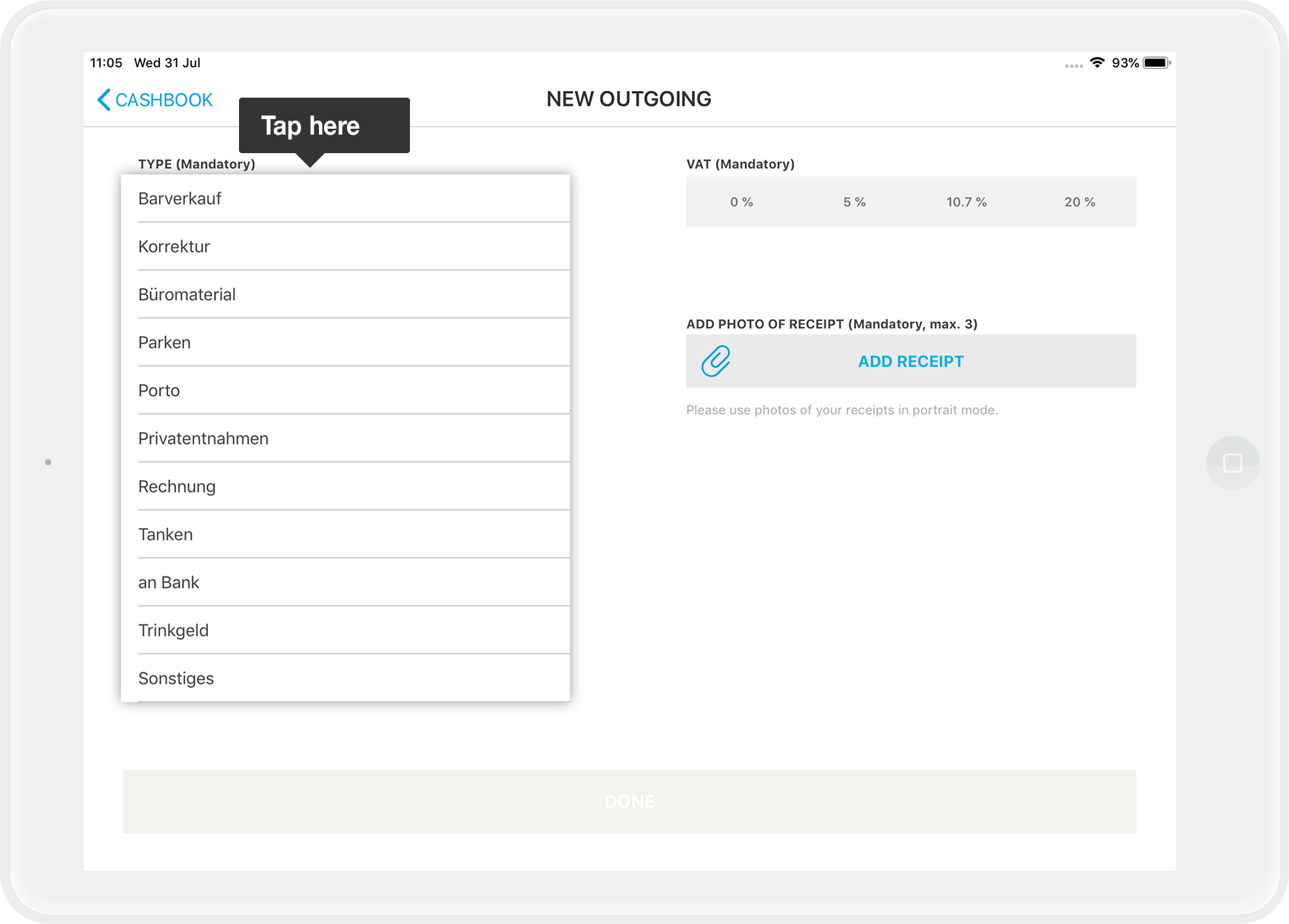
    EN_ob_6.1.1_outgoing_cash_02.png
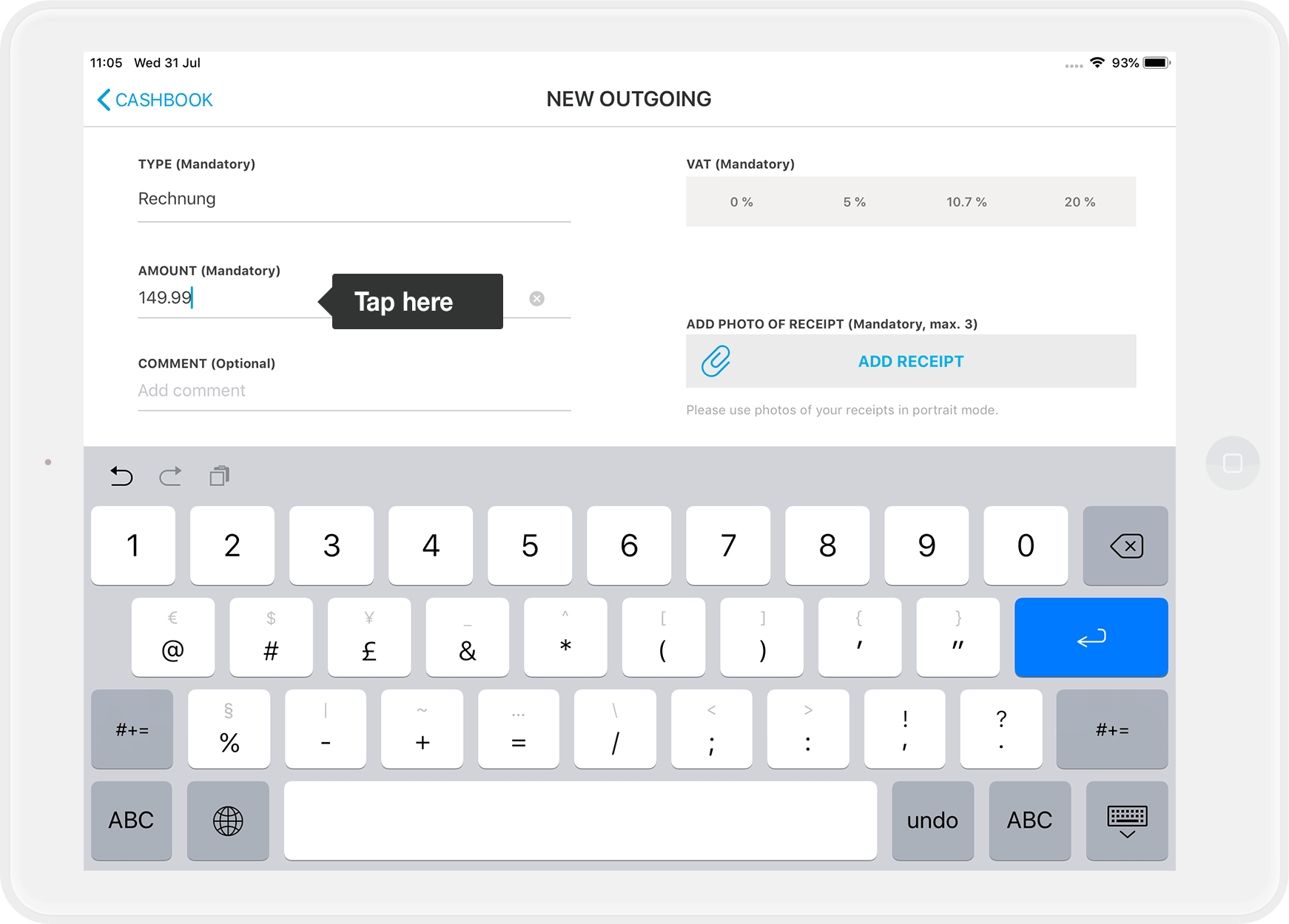
  3. Enter the amount. 
    EN_ob_6.1.1_outgoing_cash_03.png
  4. Select the correct tax rate (mandatory field). If you pay a supplier, you will find the tax rate on the invoice. 
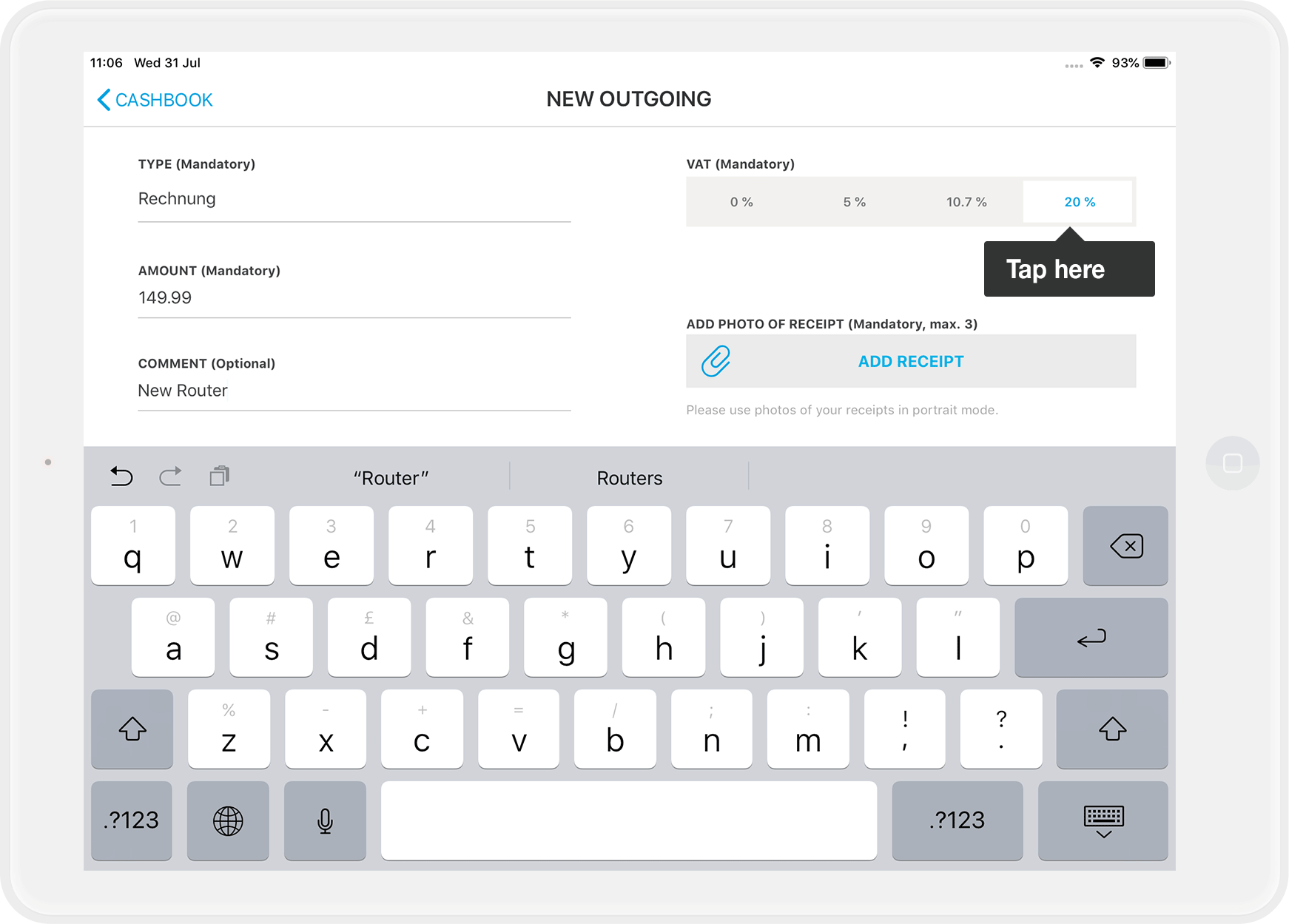
    EN_ob_6.1.1_outgoing_cash_04.png
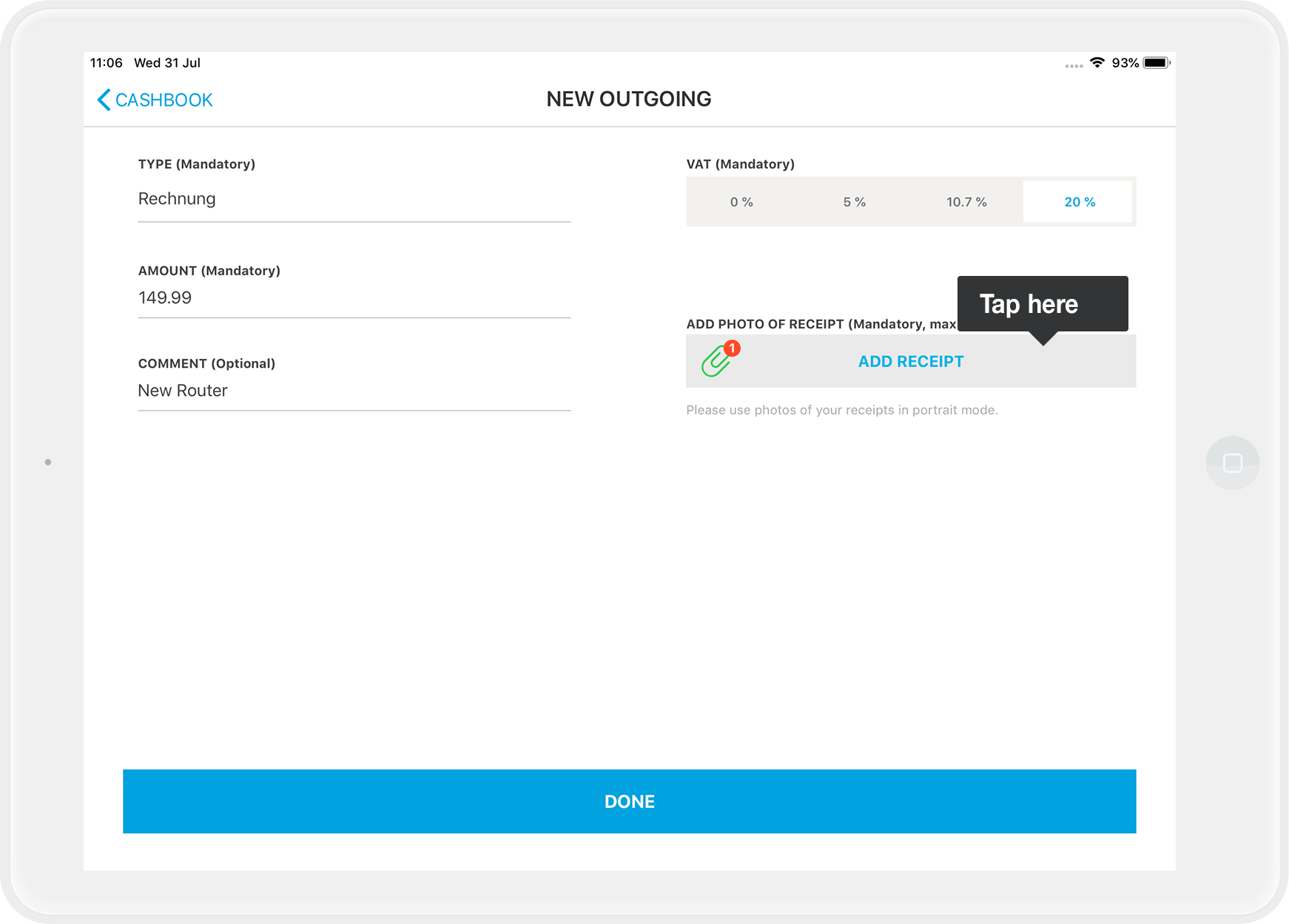
  5. Via "Add receipt" you can add a photo of the delivery receipt or the received invoice (mandatory field). This way you have everything digitally documented. 
    EN_ob_6.1.1_outgoing_cash_05.png 
    You can take up to three photos, which are also recorded for this withdrawal in the cash book. If you are not satisfied with the three photos, then stop the withdrawal and start again from the beginning. 
    Important: Please remember to keep the original receipt in a safe place!

    Export Receipt Photos?

    If you tend to misplace your original receipts often, we recommend taking receipt photos separately. How can I export my receipt photos from the cash book? This way, you’ll have a digital copy of the receipt on your iPad in the Photo Library.

     
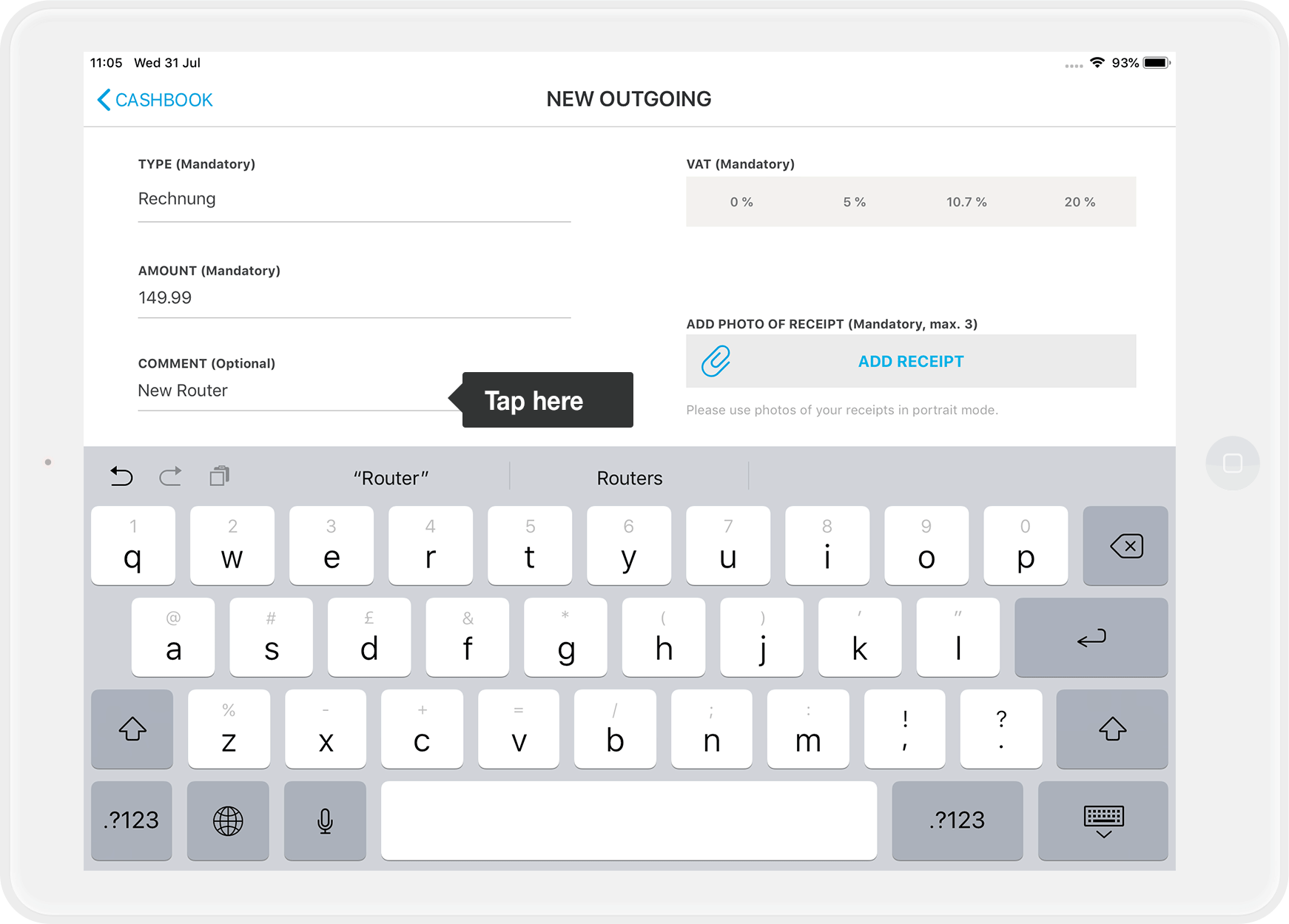
  6. Via the comment field (optional) you can describe the reason you are making this entry. 
    By the way: If you have to advance money privately, for example you have to get bread rolls in a hurry, you enter the date of the day you took the money from your point of sale. 
    EN_ob_6.1.1_outgoing_cash_06.png
  7. Tap on done - that's it!

Regarding Legal and Tax Advice

Regarding Legal and Tax Advice

Please note: orderbird does not provide legal or tax advice!

Everything we write reflects our experience and the experiences of our customers. Any information related to legal or tax aspects should not be considered legal or tax advice under any circumstances. Therefore, a procedure we describe may not be applicable to you or your business specifically.

For definitive statements, please consult your tax advisor. orderbird disclaims any liability for the accuracy, correctness, and completeness of the information provided here regarding tax-related procedures.


withdrawals cashbook

Was this article helpful?

Yes
No
Give feedback about this article

Related Articles

  • What do I have to know when managing a cashbook
  • What if there is no paper receipt for an entry?
  • What kind of information does the cash book provide?
  • How can I export the data from my Cashbook as a CSV file?
030 208 983 098

About orderbird

With over 17,000 customers — restaurants, cafés, bars, clubs, and beer gardens — orderbird is one of the leading Point of Sales systems for the hospitality industry in Europe. With the mobile POS system orderbird MINI, orderbird also offers a smart cash register solution for service providers, retailers, mobile hospitality, and the crafts.

orderbird was founded in 2011 and today employs more than 120 people.

Address

orderbird GmbH
Ritterstraße 12
D-10969 Berlin
Phone: 030 208 983 098

Opening hours

Monday: 09:00 - 18:00
Tuesday: 09:00 - 18:00
Wednesday: 09:00 - 18:00
Thursday: 09:00 - 18:00
Friday: 09:00 - 18:00
Saturday: Closed (except emergency support)
Sunday: Closed (except for emergency support)


© 2026 orderbird GmbH
  • Imprint
  • Privacy Policy
  • Legal Notice
Expand