How can I export the data from my Cashbook as a CSV file?

Table of Contents
Do you need a report on cash book pages for more than just one day? Via MY orderbird, you can now export the data of your cash book pages as a CSV file. The CSV format can easily be imported into any common tax software.
Good to know:
- All transactions (cash withdrawals and deposits) made via the cashbook are also included in the DATEV export. This means your bookkeeping has all the transactions from your orderbird register in just one export: Is it possible to have my DATEV report sent automatically to my tax advisor?
- In your orderbird PRO app, you can download the cashbook pages as a PDF.
At a glance
- Log in to MY orderbird
- Click on "Cash book", then on "Create CSV export"
- Set the start and end date
- Enter an email address
- Click on "Send CSV export"
CSV export of cash book pages - Step by step
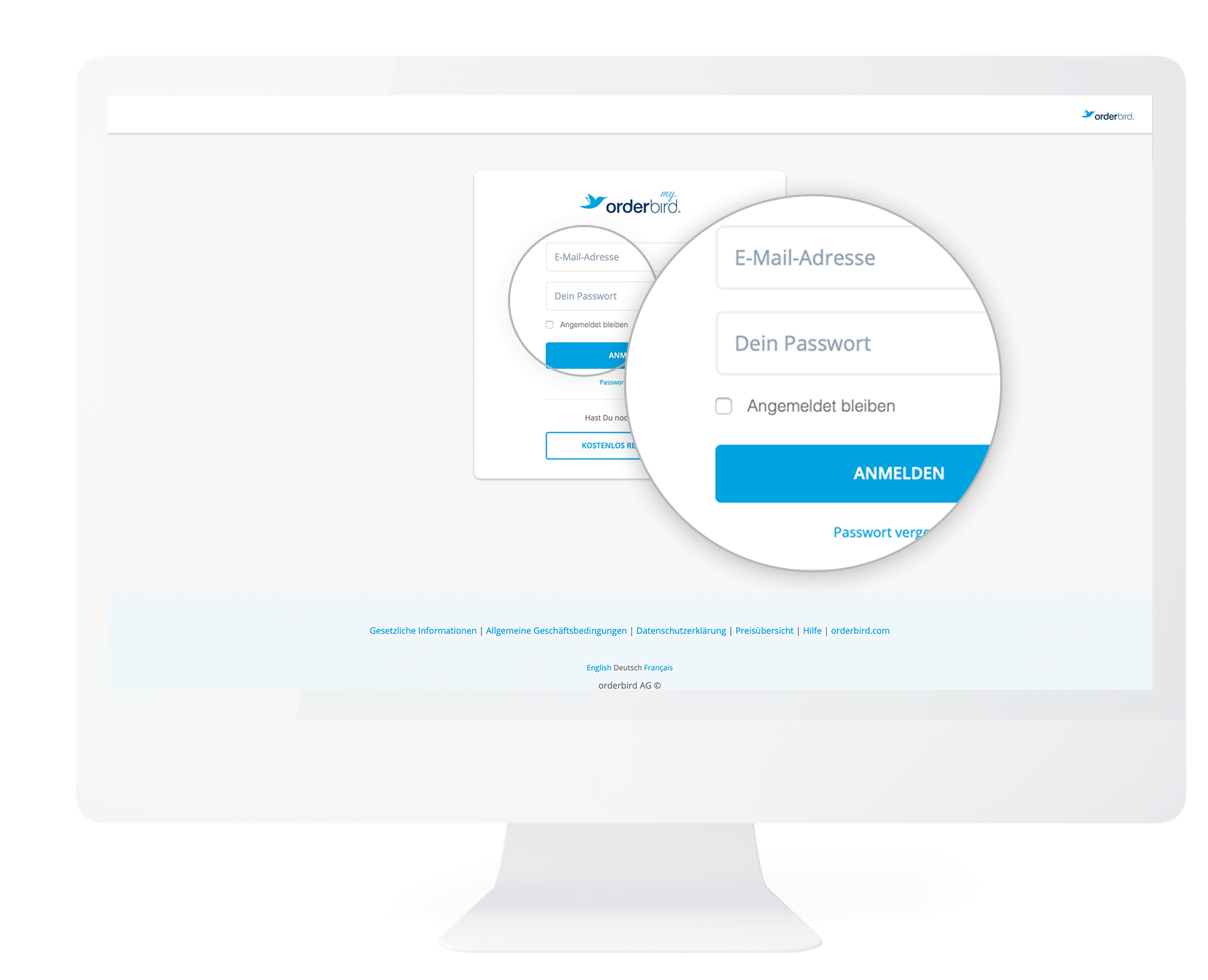
- Go to MY orderbird and log in with your credentials.
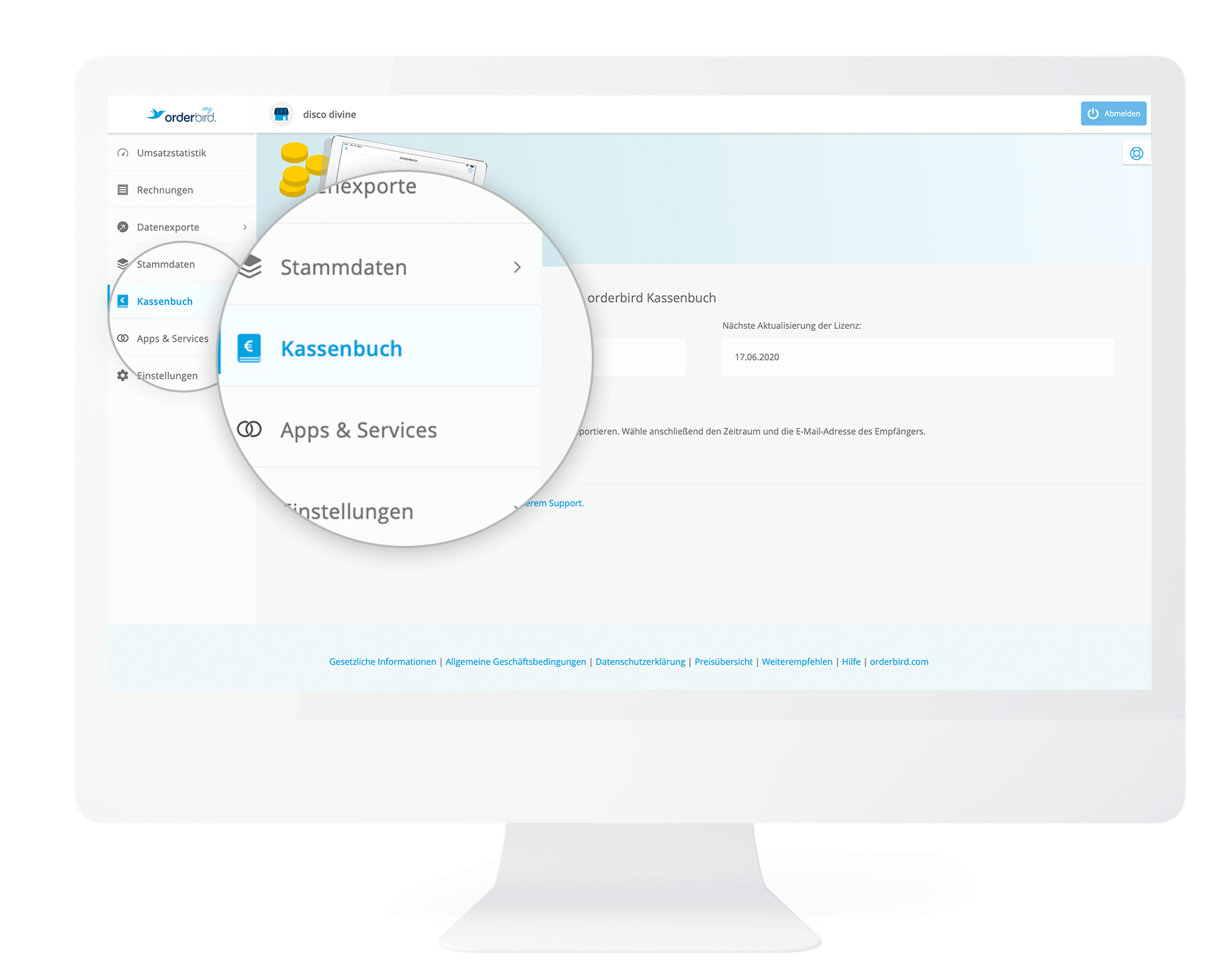
- Click on "Cash book" in the left column.
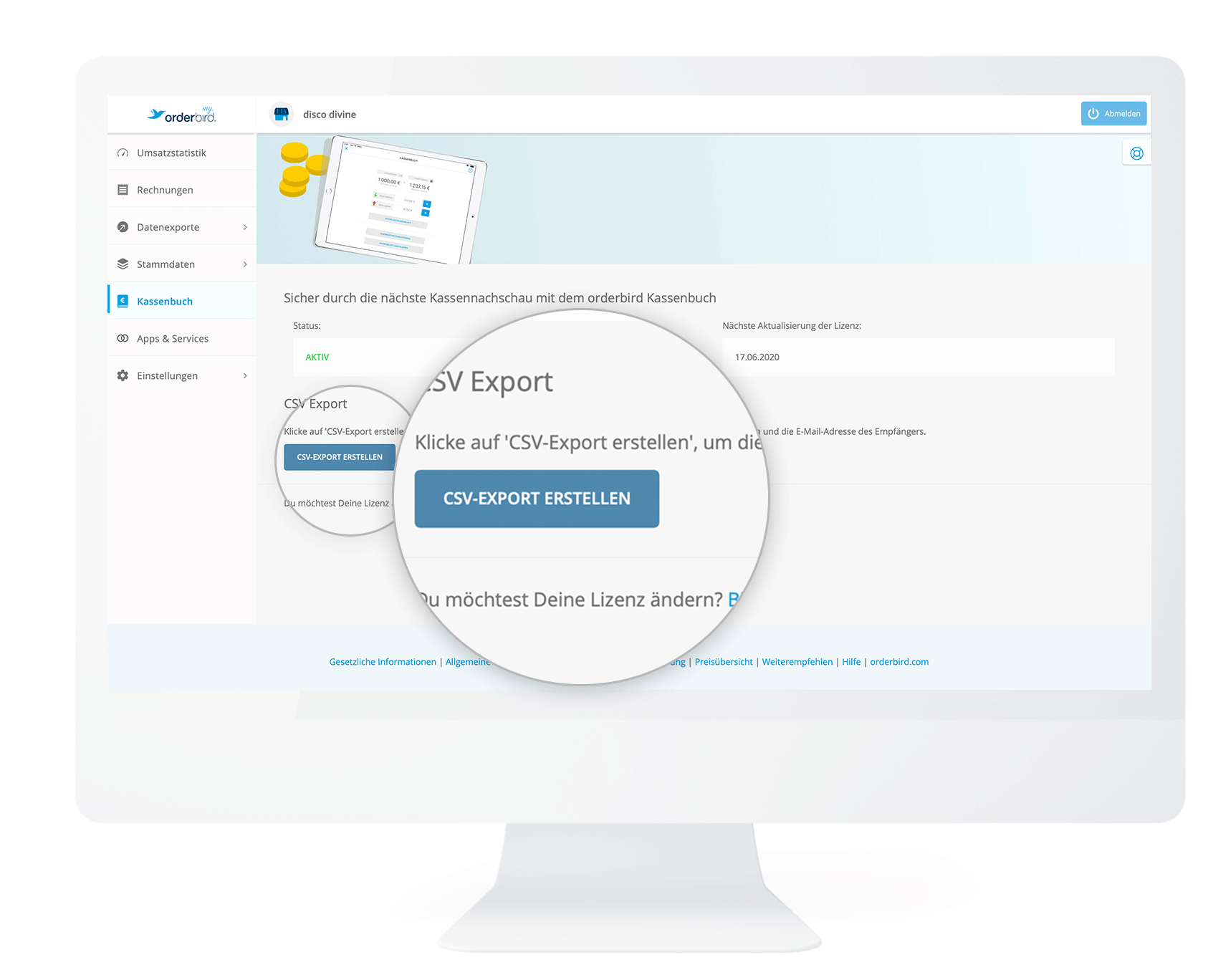
- Now click on the "Create CSV export" button.
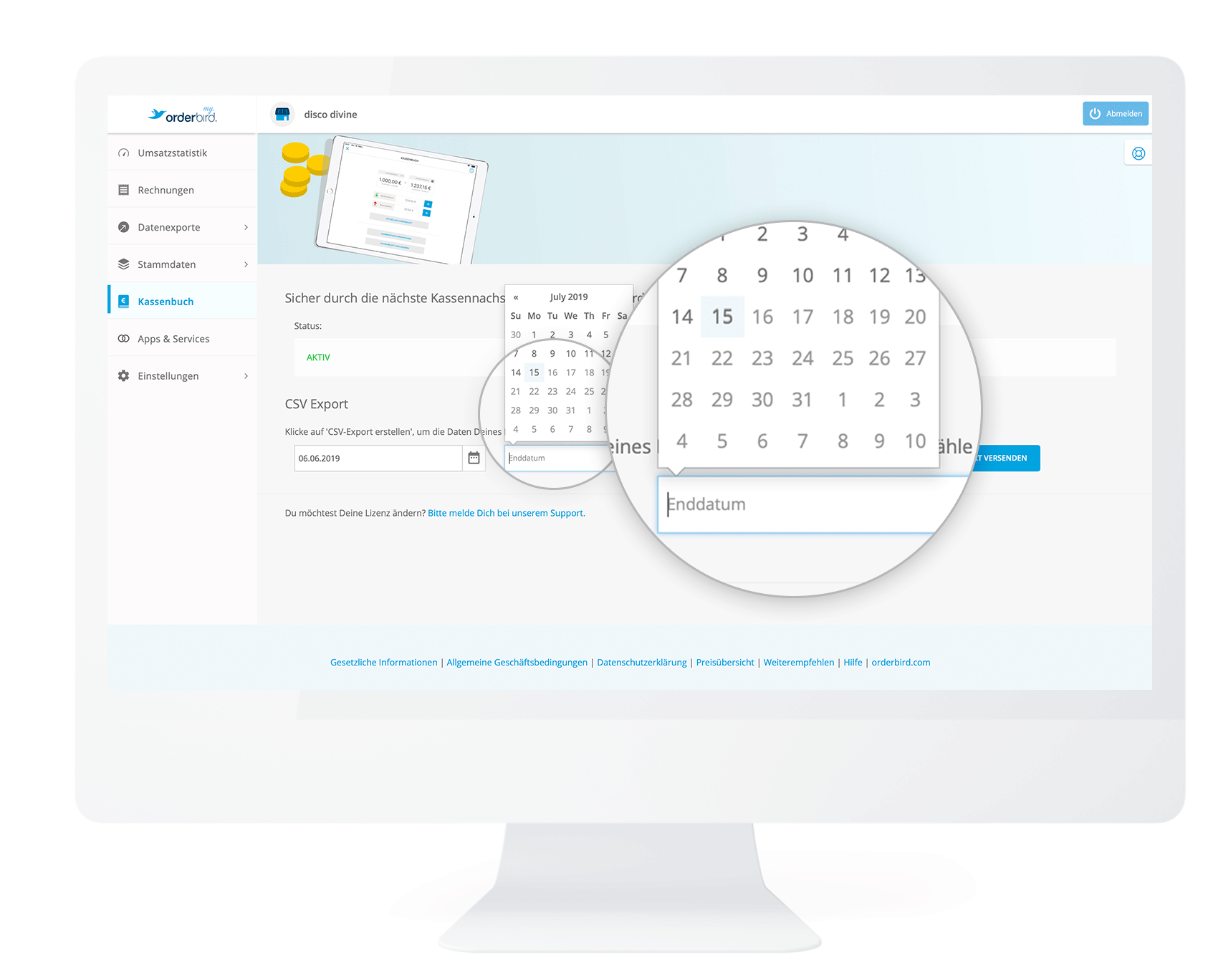
- Next, define the time period for your cash book pages. First, click on "Start date" and navigate to the desired date, e.g., 06.06.2019.
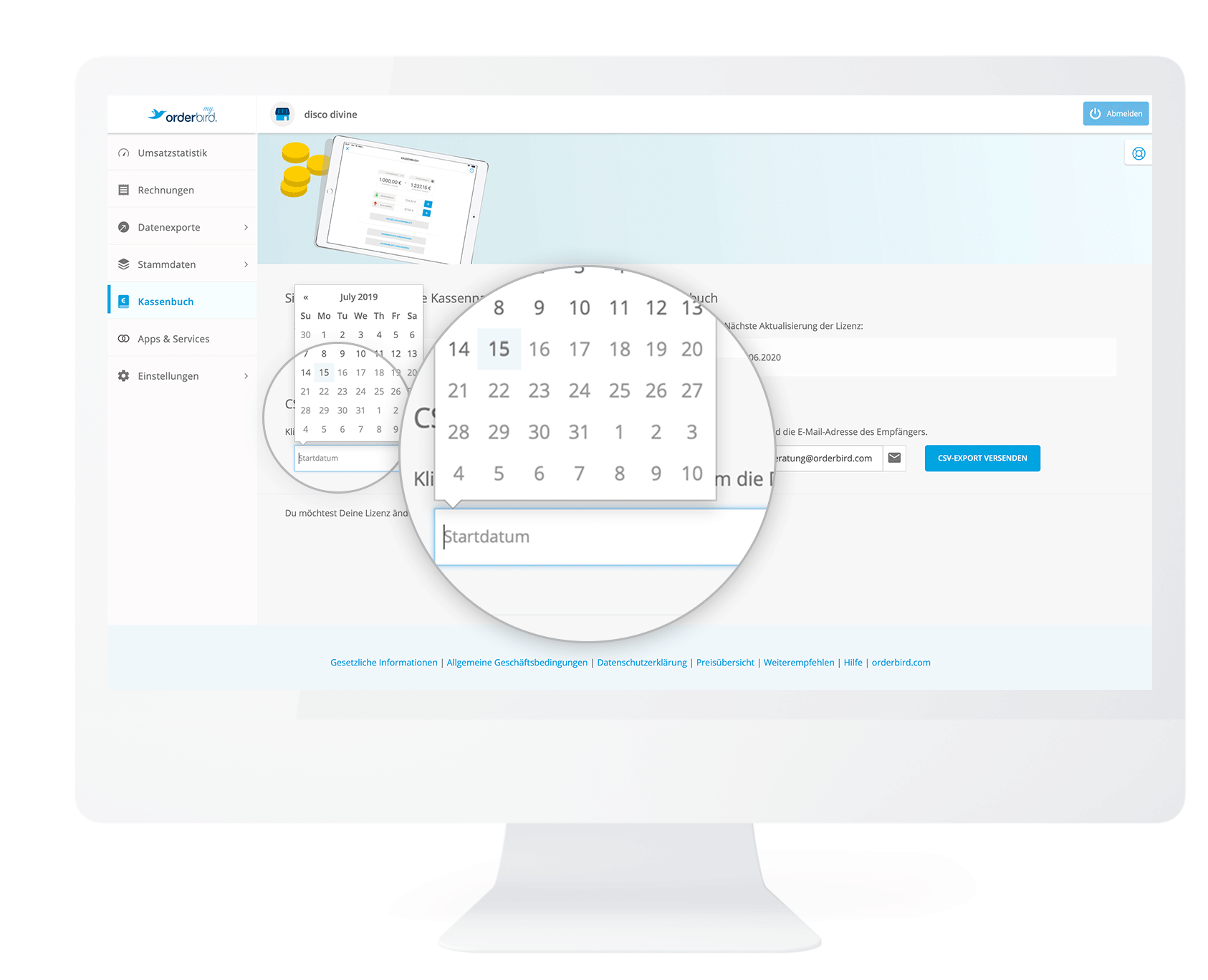
- Then click on "End date" and navigate to the desired date, e.g., 15.07.2019.
- Next, enter the email address to which the cash book pages should be sent.
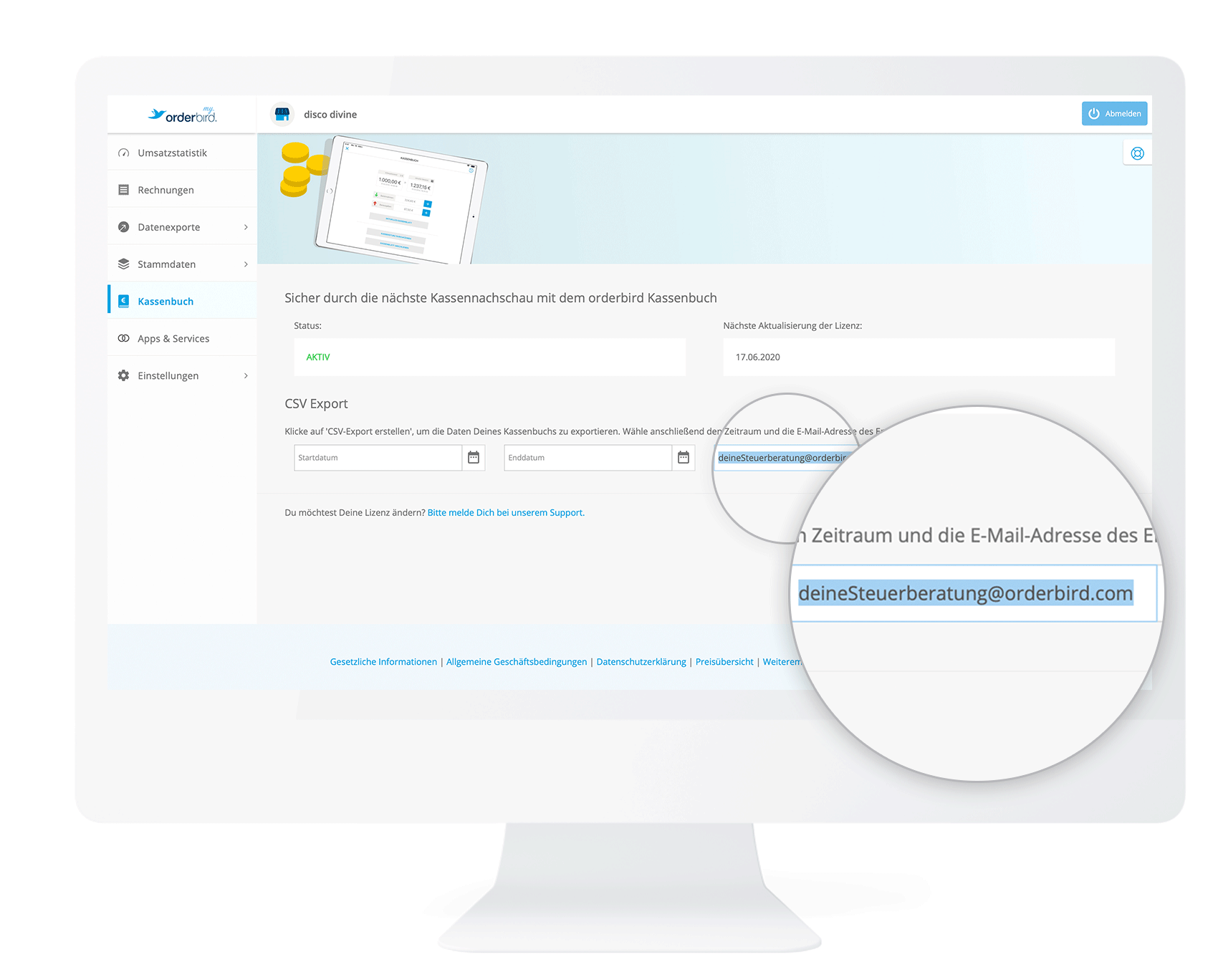
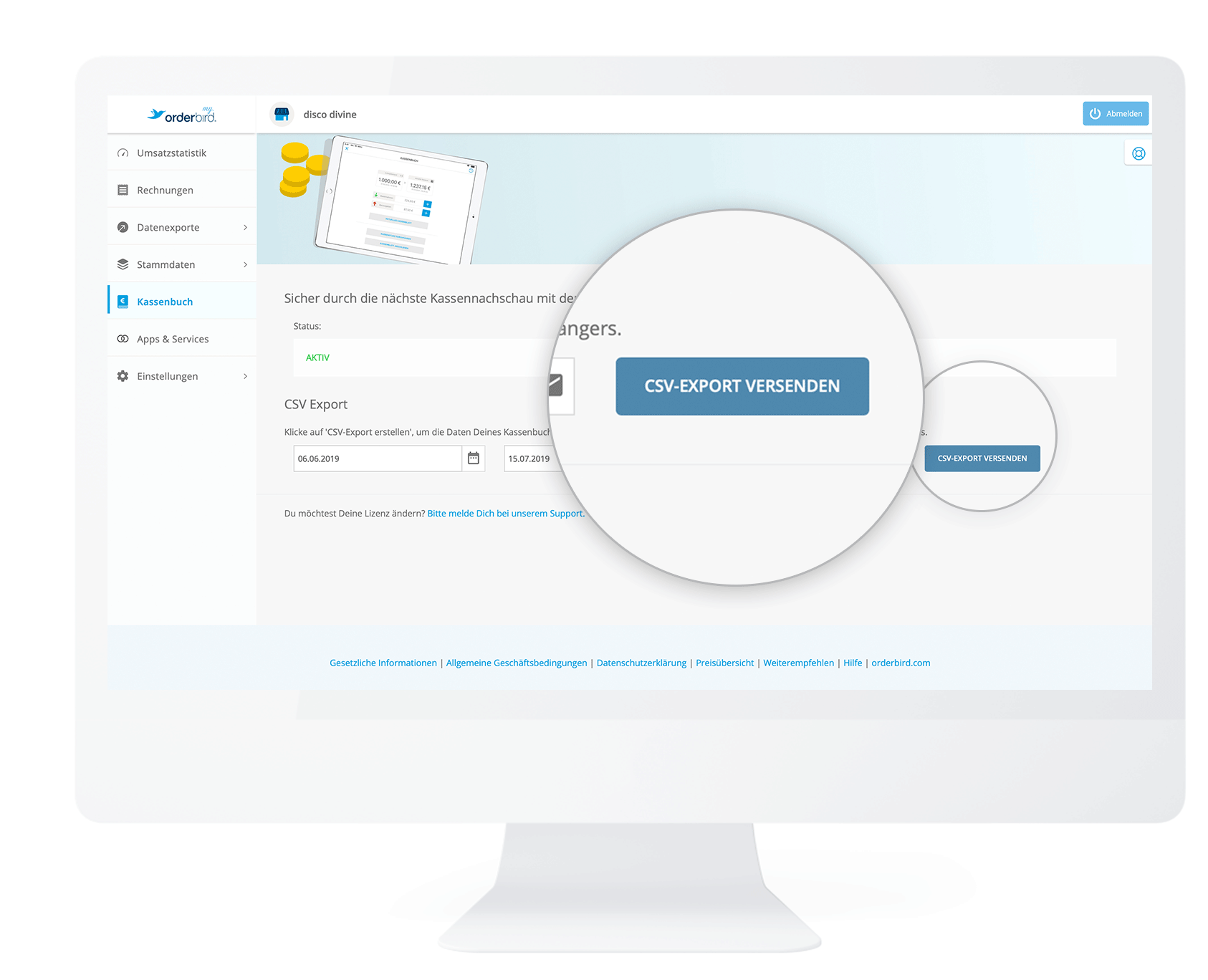
If you have already entered your tax advisor's email address under "Settings > DATEV Details", this email address will be automatically applied. However, you can also enter any other address! - Click on "Send CSV export".
- Finished!
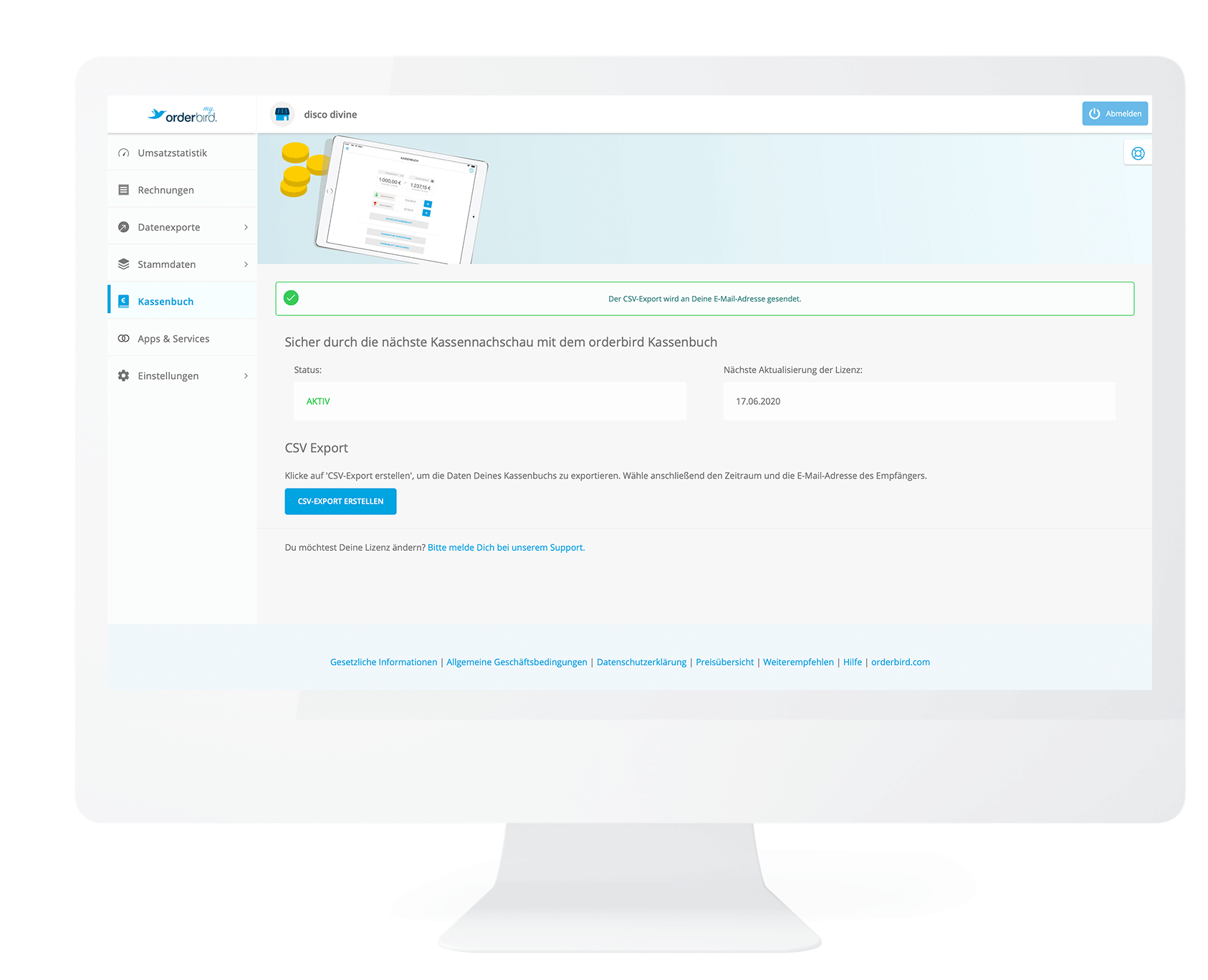
The email contains a CSV file and will be sent to your desired email address!
Any questions?
My export is not arriving. What now?
In case the export does not reach you, take a look here: „I haven't received my cash book export. What now?“.