Your start with the orderbird PRO cashbook

Table of Contents
The fastest way to register for the cashbook is directly via the orderbird app, or you can start the registration at any time from within MY orderbird. Registration for the cashbook, including setup, takes less than 5 minutes!
Quick Overview
- Check requirements for using the cashbook (iPad with orderbird PRO min. 6.1.0 & working internet connection)
- Register for the cashbook in orderbird PRO
- Define cash payment types in MY orderbird
- Record your initial cash balance
Want to watch a video?
Step by Step
Check: Requirements for using the cashbook
- To use the cashbook, you need an iPad. The cashbook does not work on iPod or iPhone.
- Additionally, you must have at least orderbird version 6.1.0 installed.
- You also need a working internet connection to make entries in the cashbook. If you generally work offline (e.g., in a food truck), you unfortunately cannot use the orderbird cashbook.
Step 1: Register to use the cashbook
Shift closed
Attention! Make sure that the shift in the orderbird app is closed before registering for the cashbook.
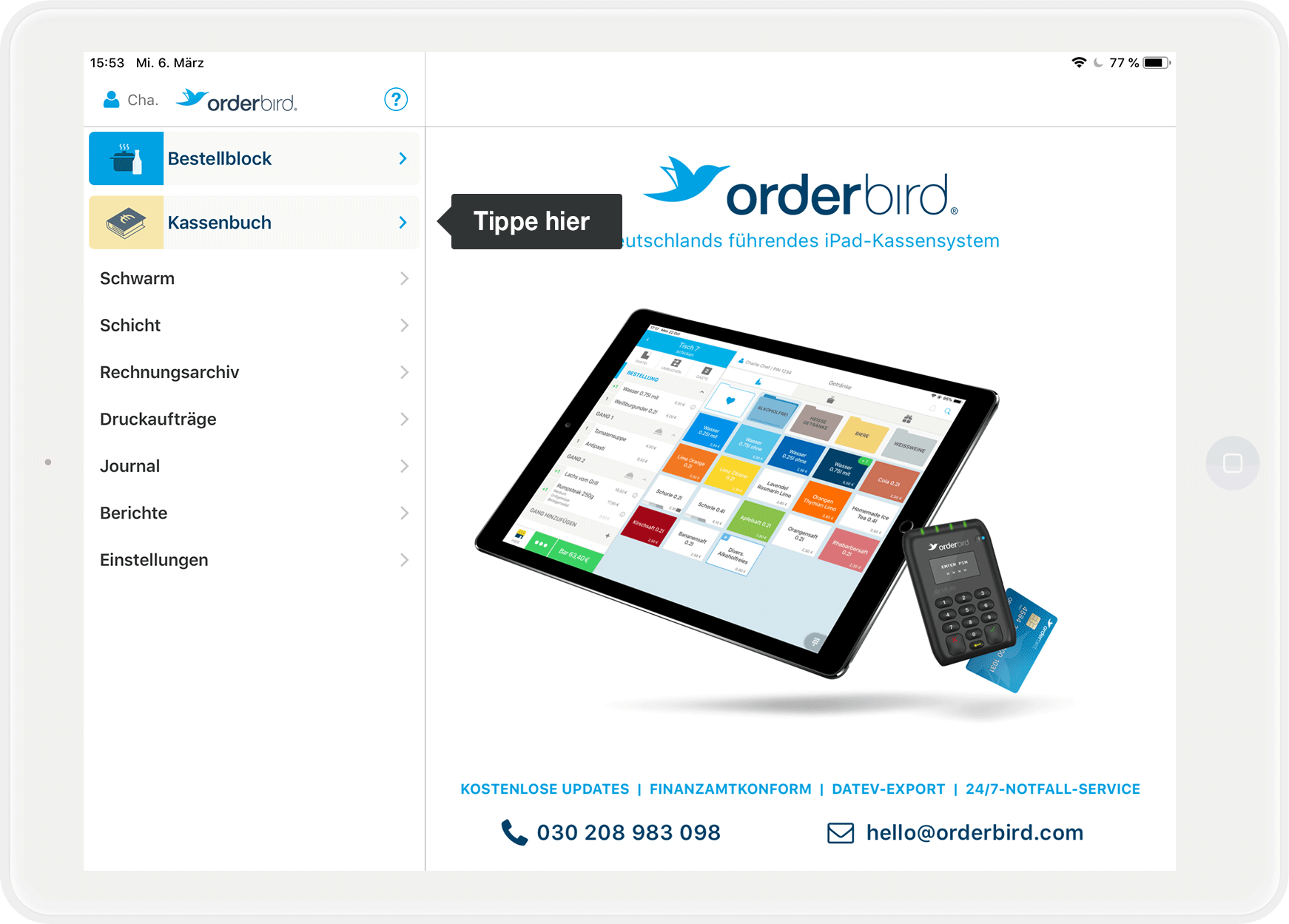
- Open the orderbird app on your iPad and tap "Cashbook" in the main menu.
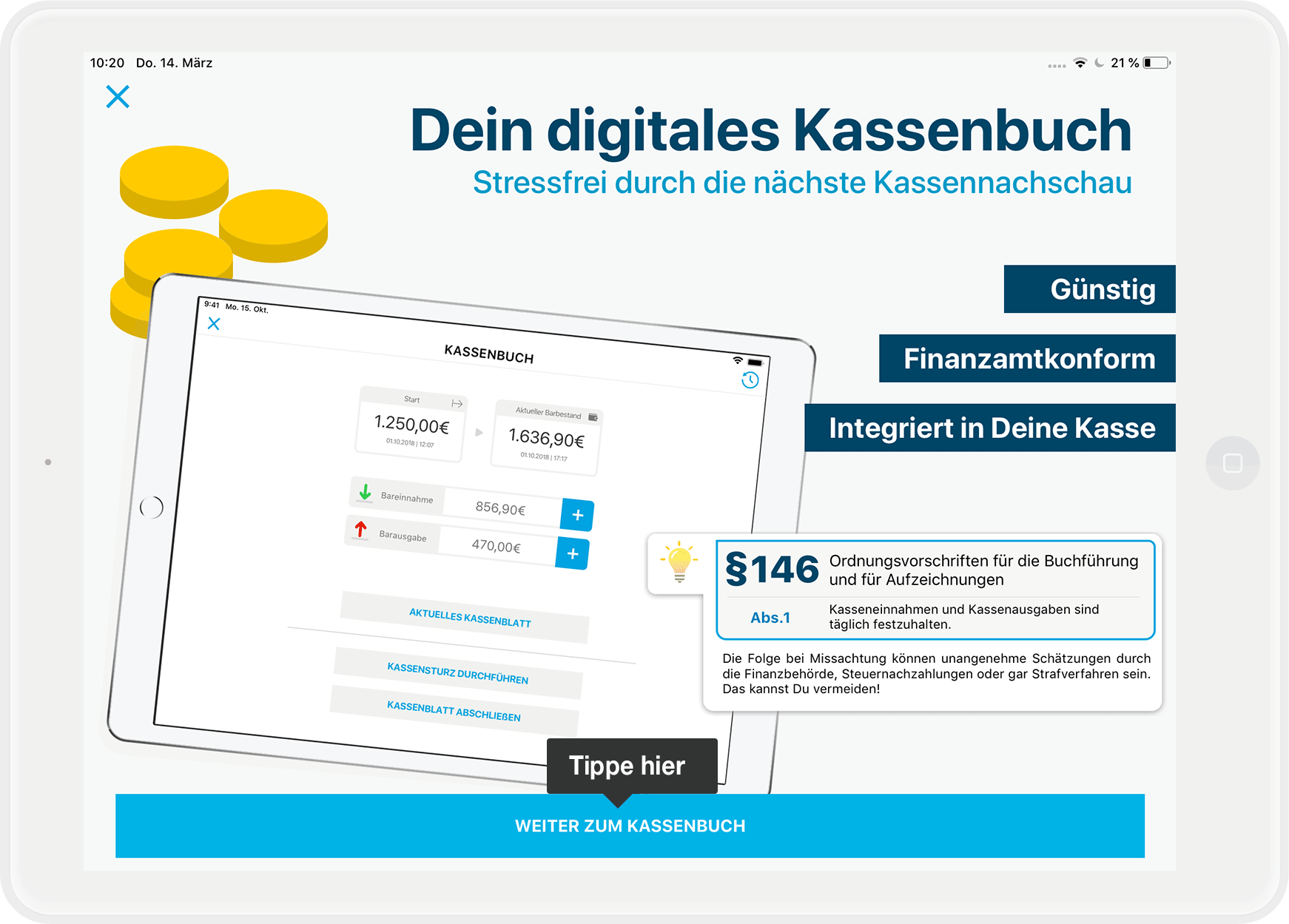
- Tap "Continue to Cashbook" at the bottom.
- You will be asked for the Administrator PIN. Only the administrator of the register can register for the cashbook. This makes sense, as the administrator can do everything! – they are an administrator, after all.
- Next, you will see a brief overview of the conditions for using the cashbook. Please take a moment to read the terms and conditions carefully. To start, tap "Activate cashbook (fee required)".
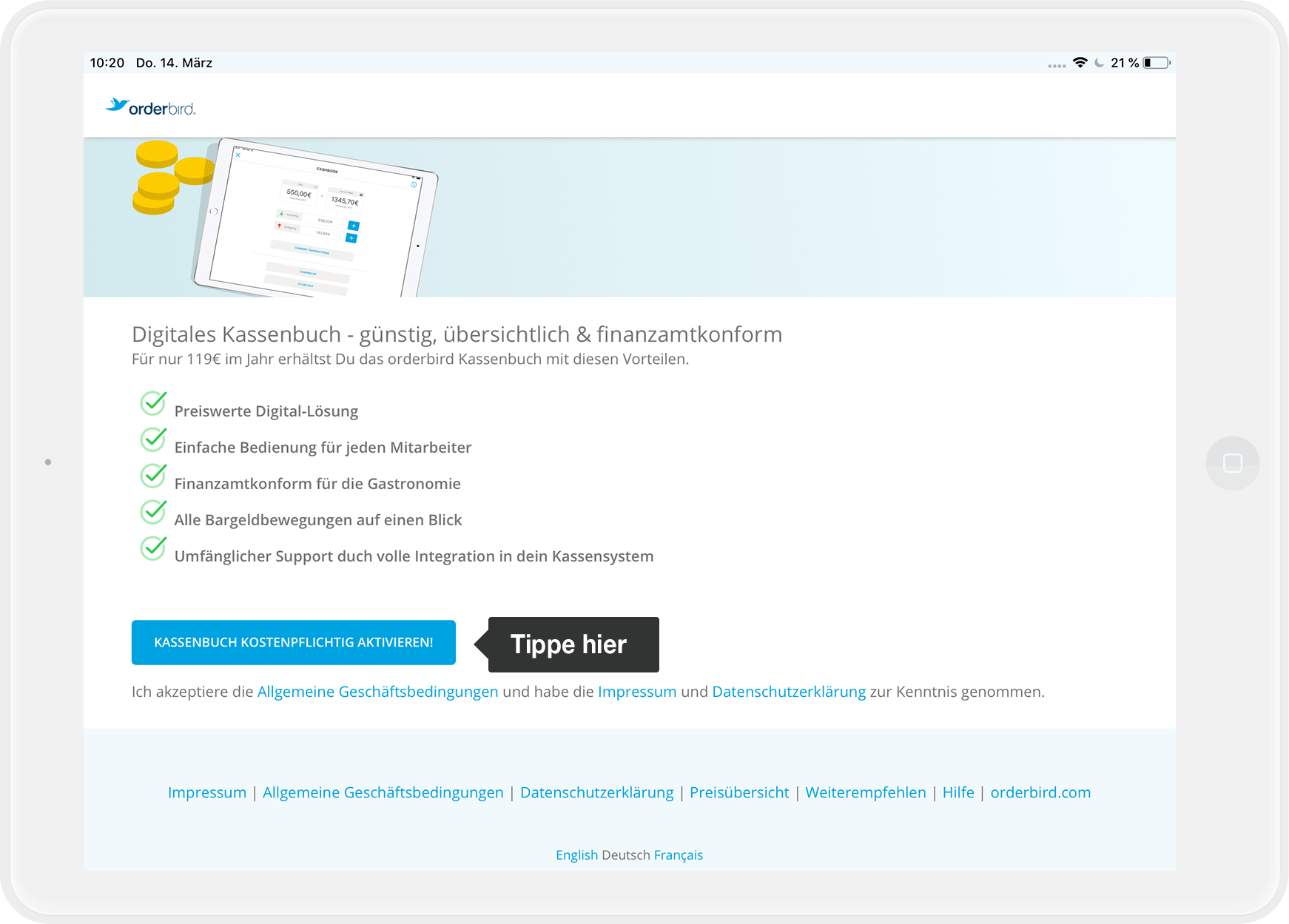
Step 2: Assign your cash payment types in the cashbook
To ensure your cashbook is legally compliant, you must specify which of your payment types are "Cash" payments. This ensures that all entries are correctly forwarded to your cashbook.
Verify assignments
We have already pre-assigned some settings for you so you can start using the cashbook quickly. It is essential that you verify these for correctness. The accuracy of the assignments is your responsibility!
- Log in to MY orderbird with your login details. If you have forgotten your password, tap “Forgot password” to receive a new one.
- Tap "Master Data" > "Payment Methods".
- Check if your payment methods for cash payments are correctly assigned and change the assignment if necessary. To do this, tap the small pencil icon at the end of the row.
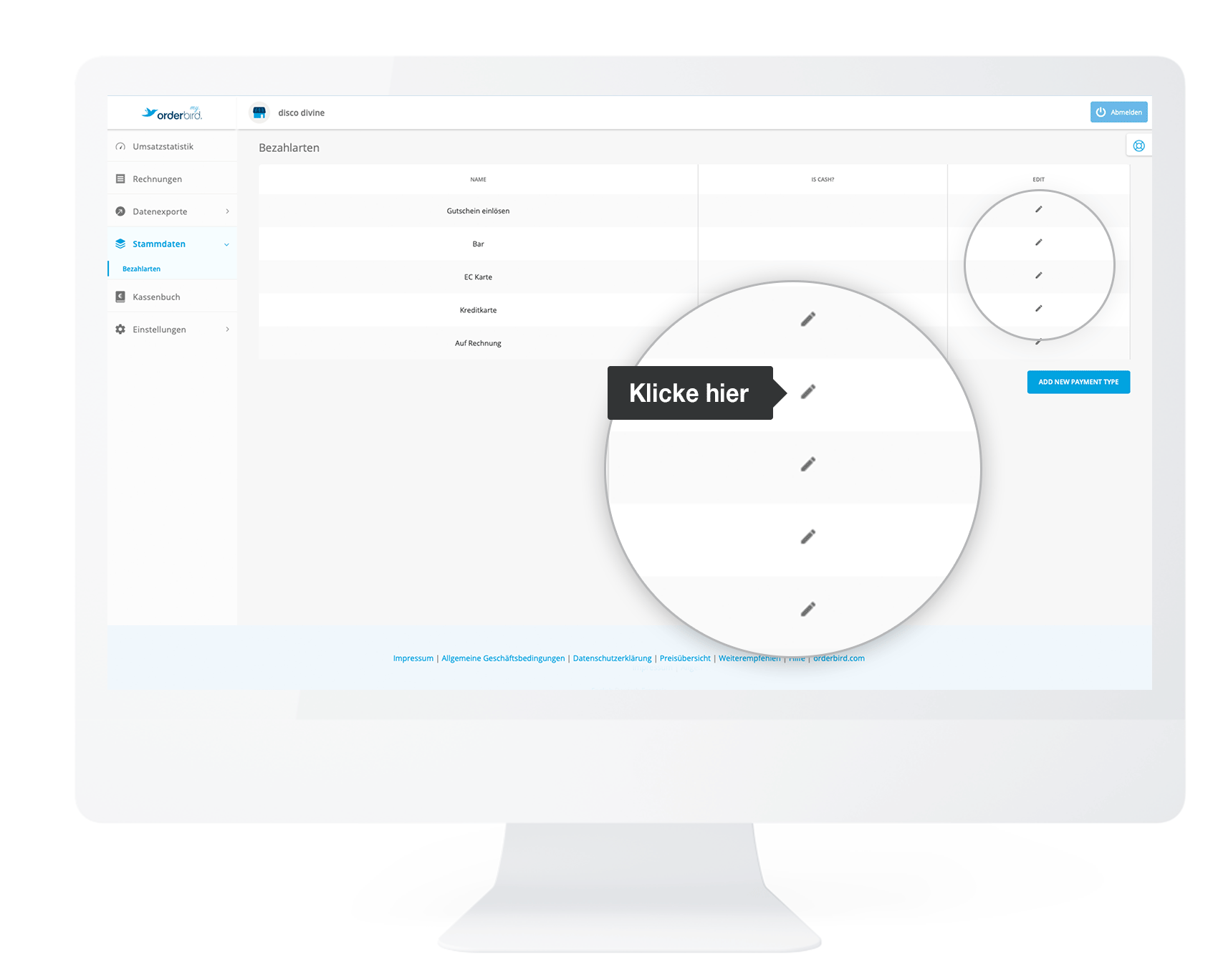
- Check the box "Is cash payment" …
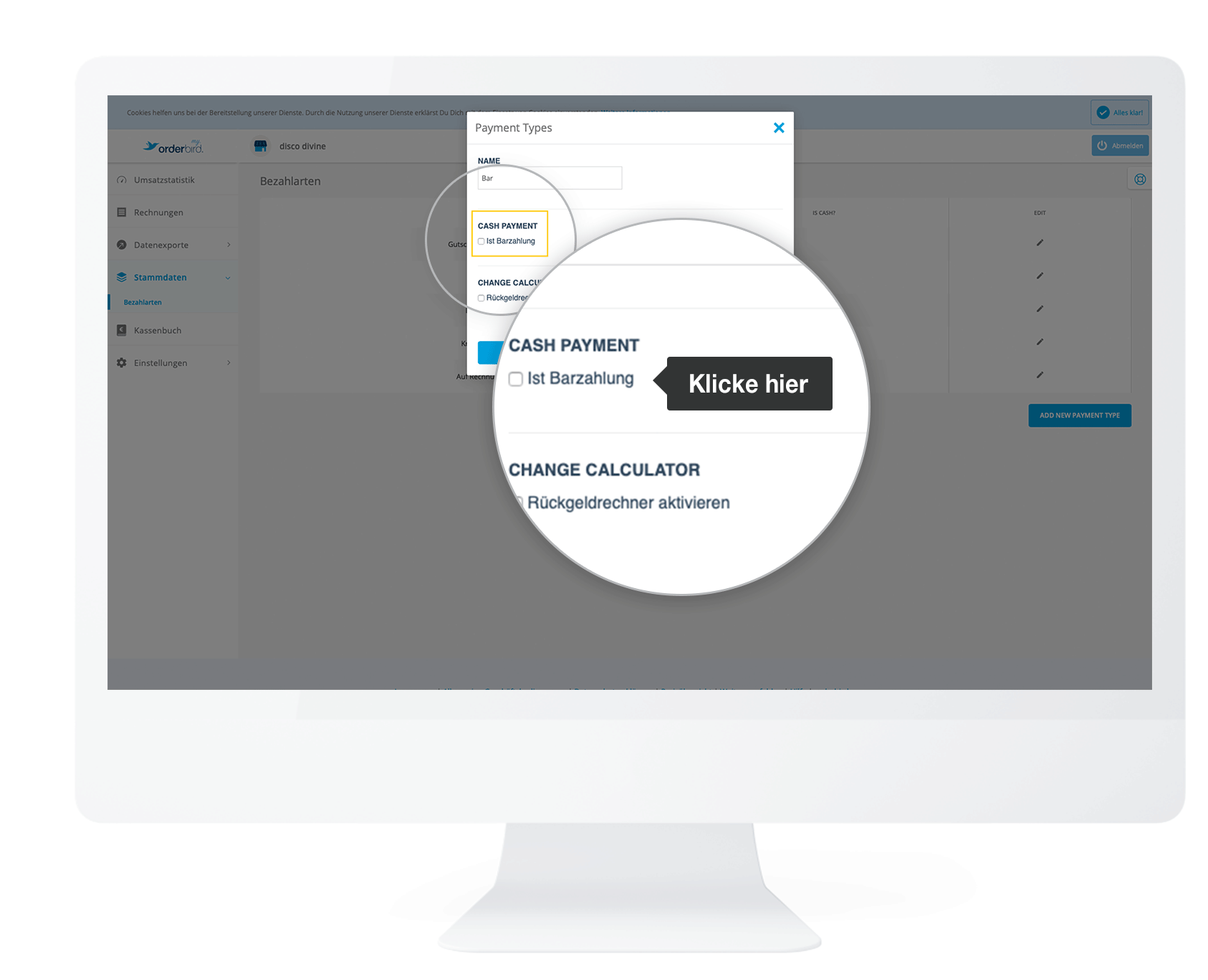
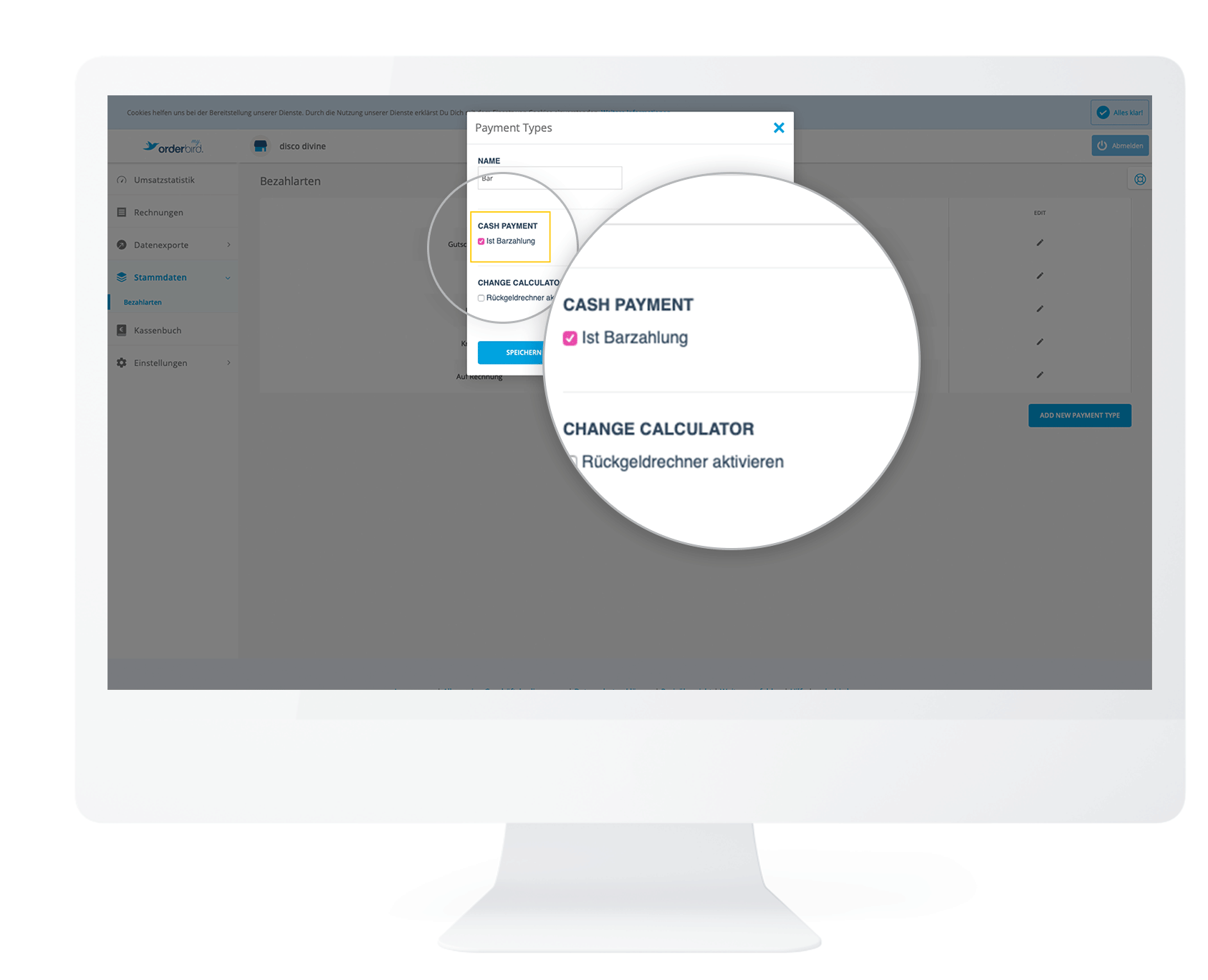
- … and save the change so that sales from this payment method are entered into the cashbook.
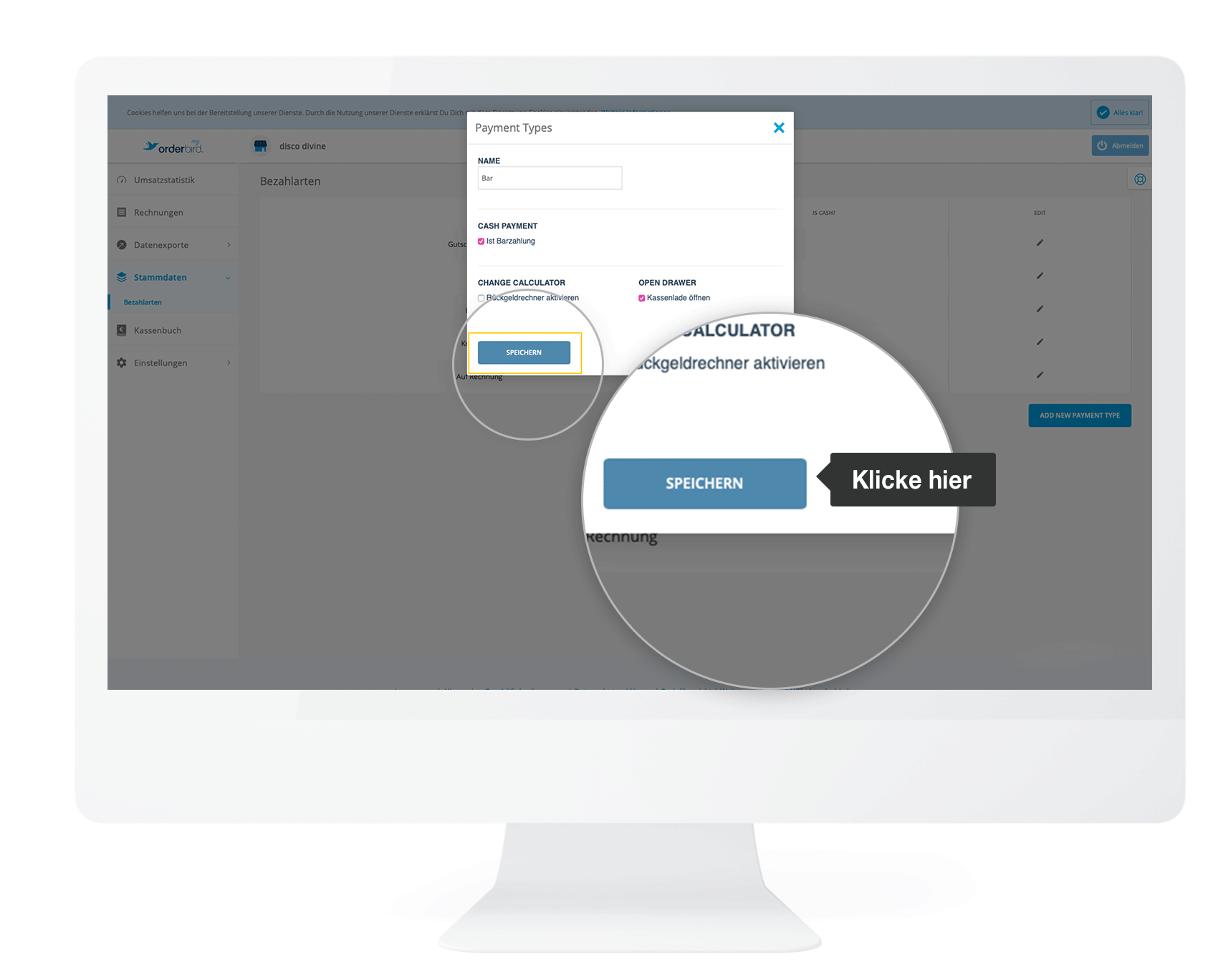
- Have you marked your cash payment types accordingly? Are you sure everything is correct? Then proceed to the third and final step:
Step 3: Record your initial cash balance
To get started with your new cashbook, first record your current cash on hand.
- Make sure your shift in the orderbird app is closed and all data has been synchronized.
- Have you kept a cashbook in the past? Then perform a cash count now and close your previous cashbook.
In all other cases, simply proceed: - Enter your current cash balance from your register into your new orderbird cashbook. Here is how:
- In the cashbook, tap the "+" symbol next to the item "Cash Receipts".
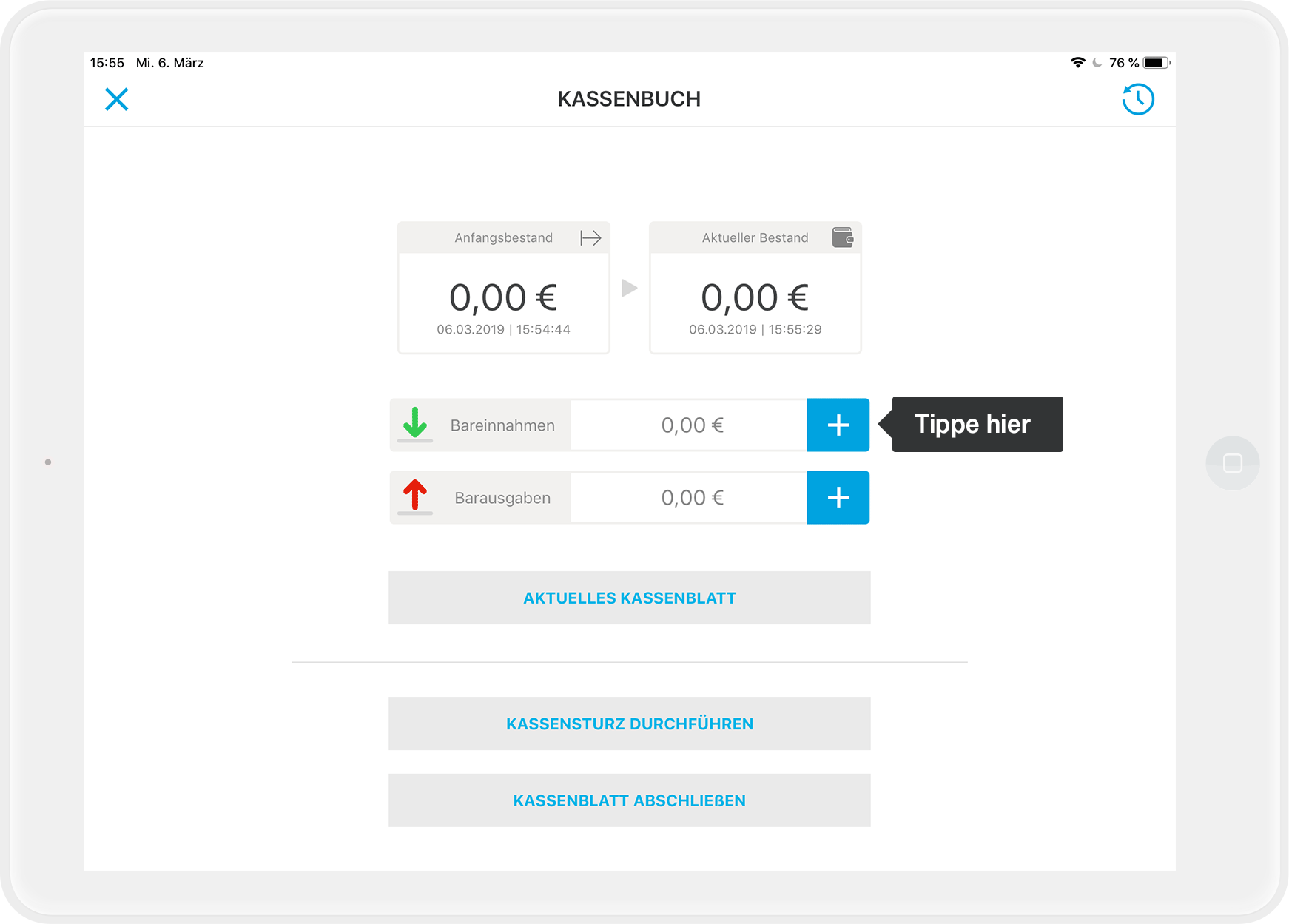
- Then select "Other" as the type of deposit.
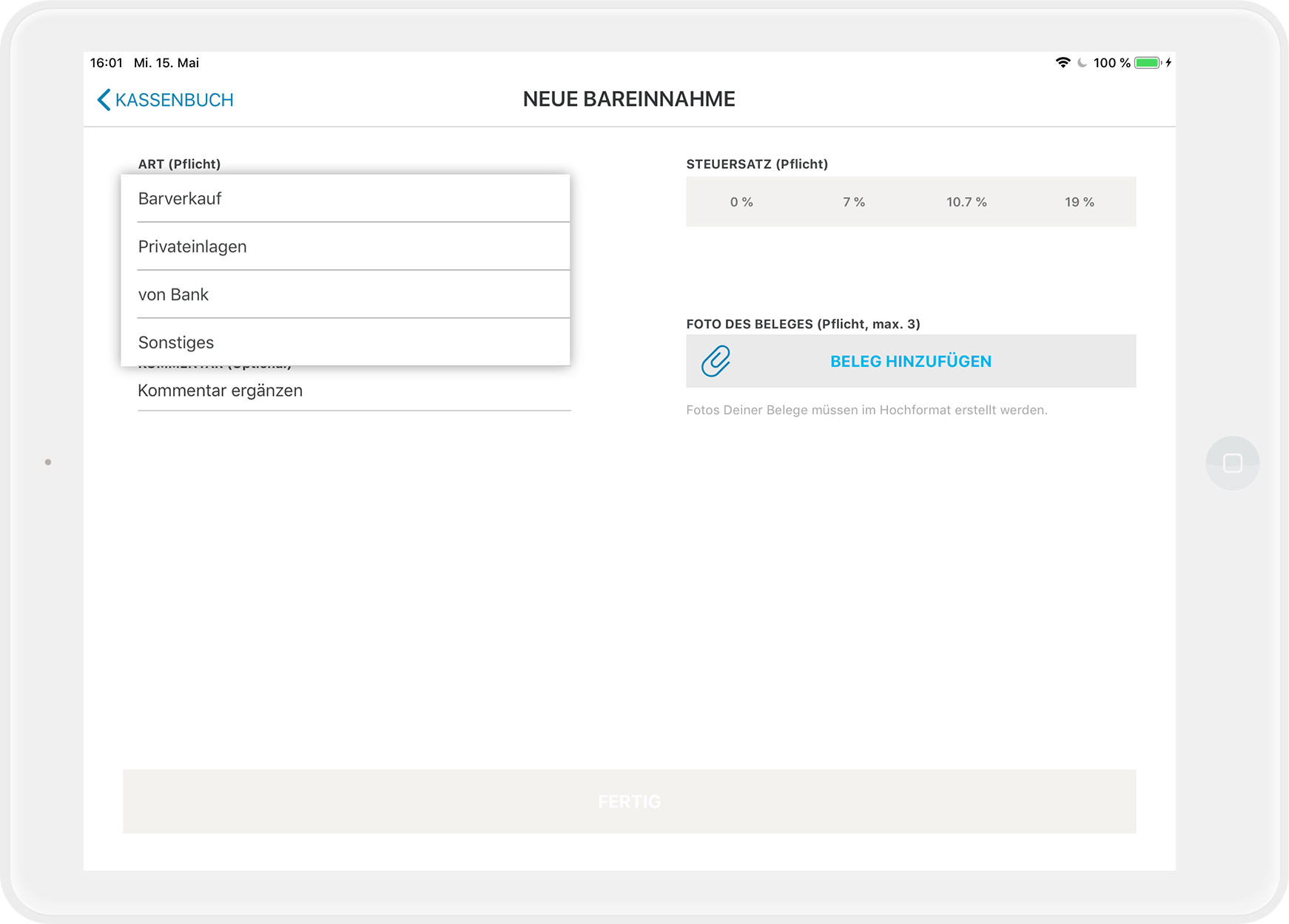
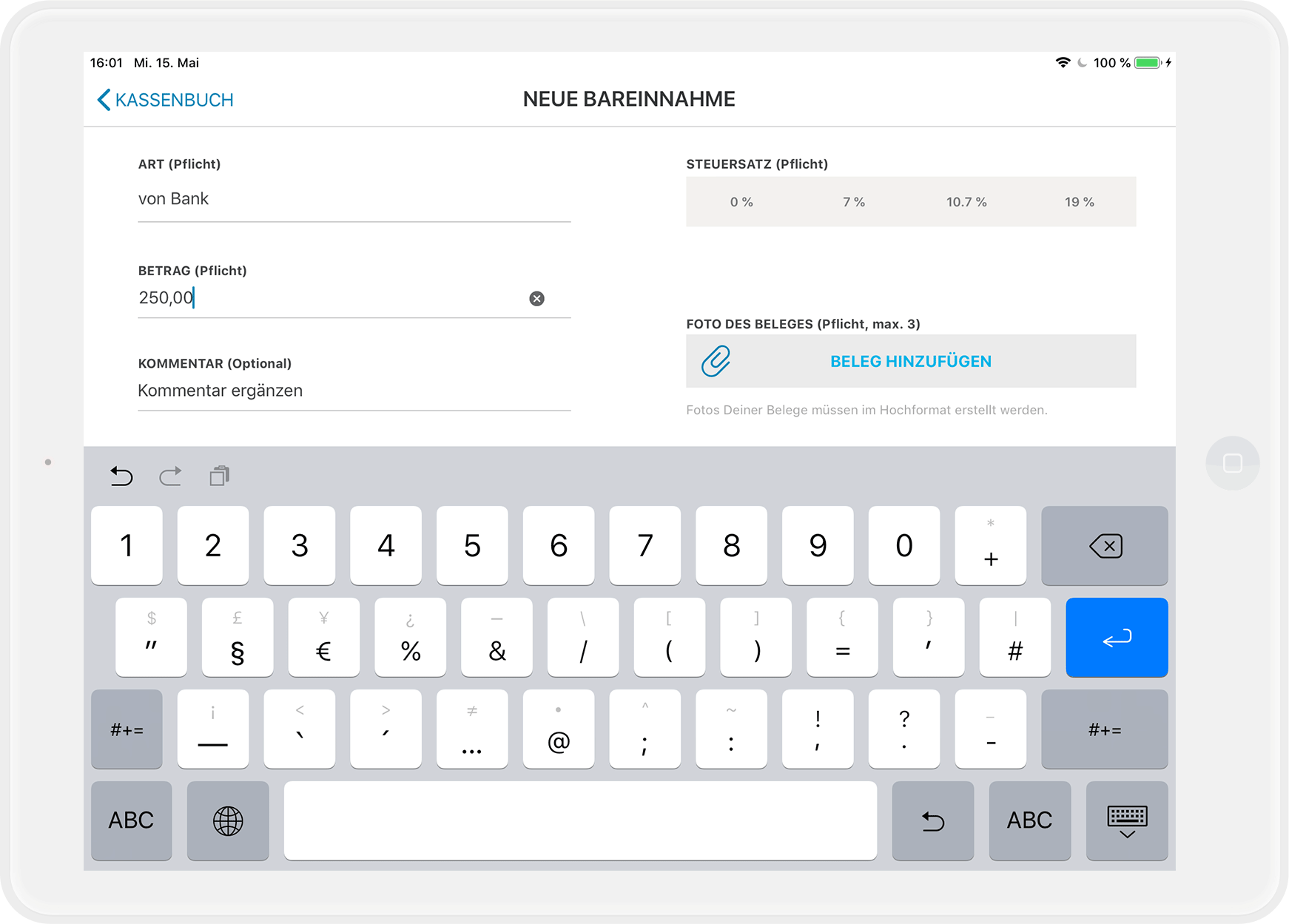
- Enter the amount.
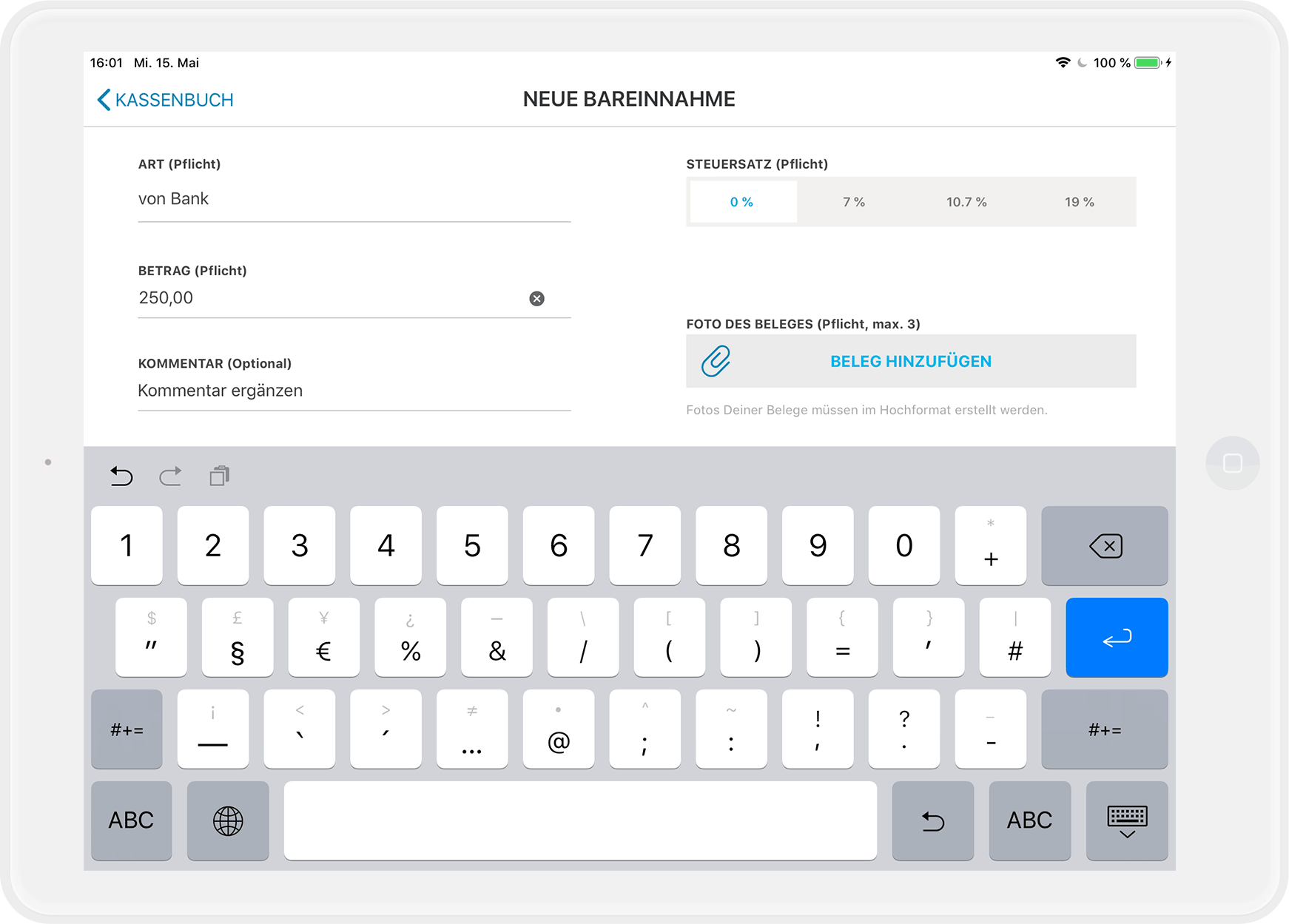
- Select the correct tax rate: This is "Tax-free" for the transfer of your cash balance or for a change fund deposit.
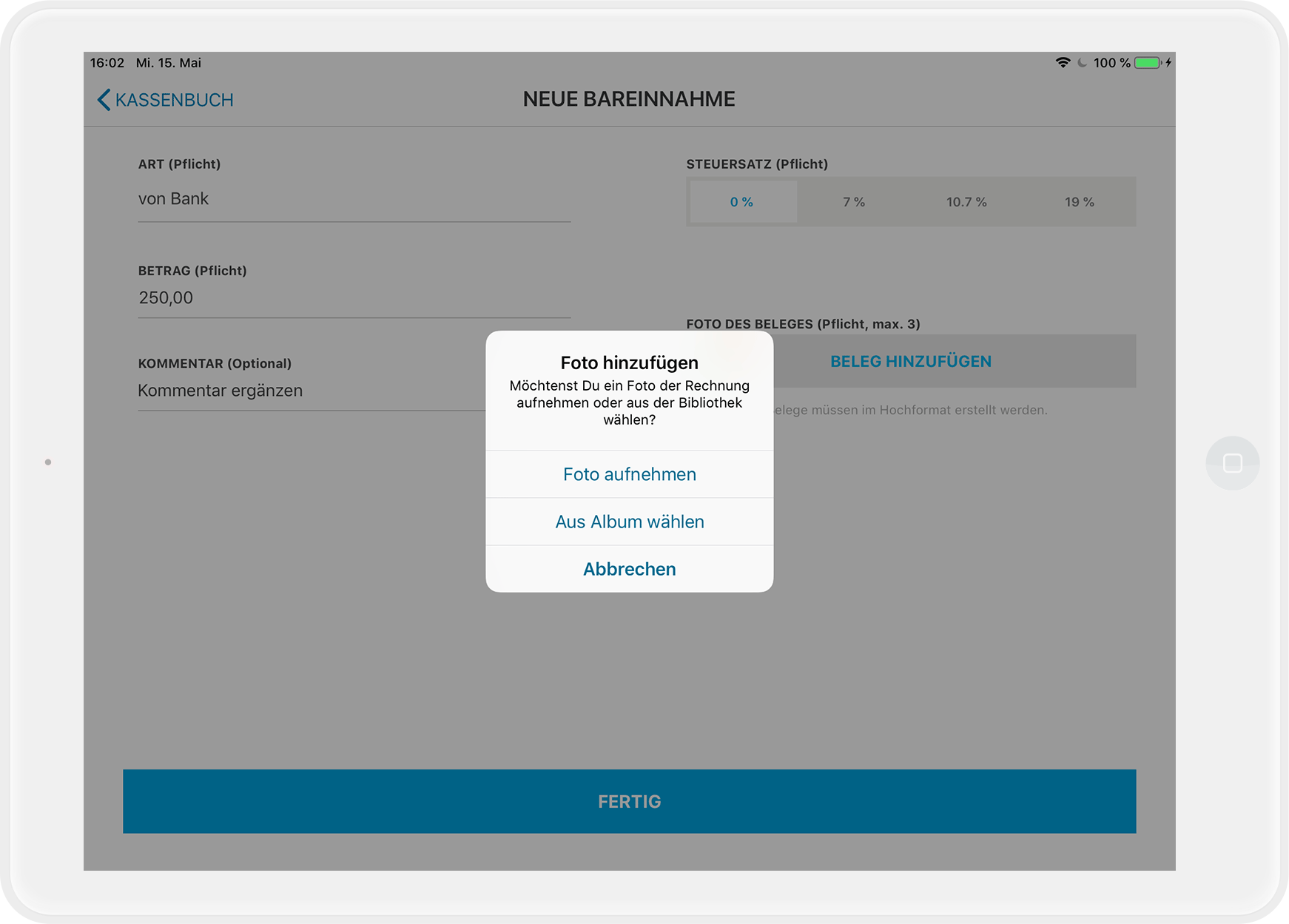
- Use "Add receipt" to include a photo of your (internal) receipt or, for example, the bank withdrawal slip.
- Use the comment field to explain whether you are doing a "Transfer from old cashbook" or a "Change fund deposit".
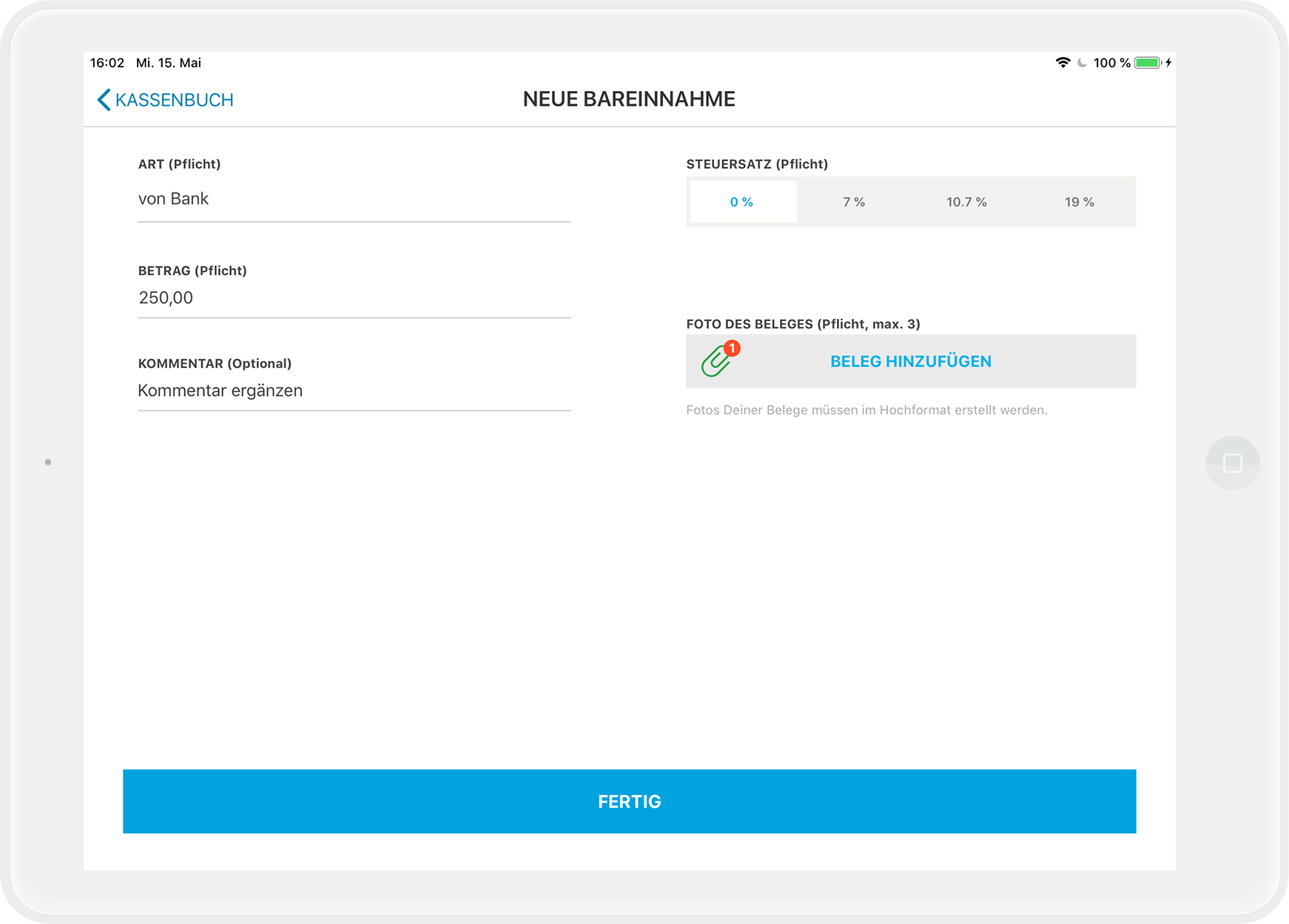 If you are doing both, create two separate entries in the cashbook.
Support from your tax advisor required
Be sure to consult your tax advisor on what type of deposit you are making and how to correctly label it in the comment field. For example, a GmbH cannot make a private deposit from their own pocket, but a sole proprietor can!
- If you are only transferring the balance from your old cashbook to the new one, inform your tax advisor and explain this in the comment field. Since it is merely a transfer without a change in inventory, this transaction should not appear in the accounting later.
- In the cashbook, tap the "+" symbol next to the item "Cash Receipts".
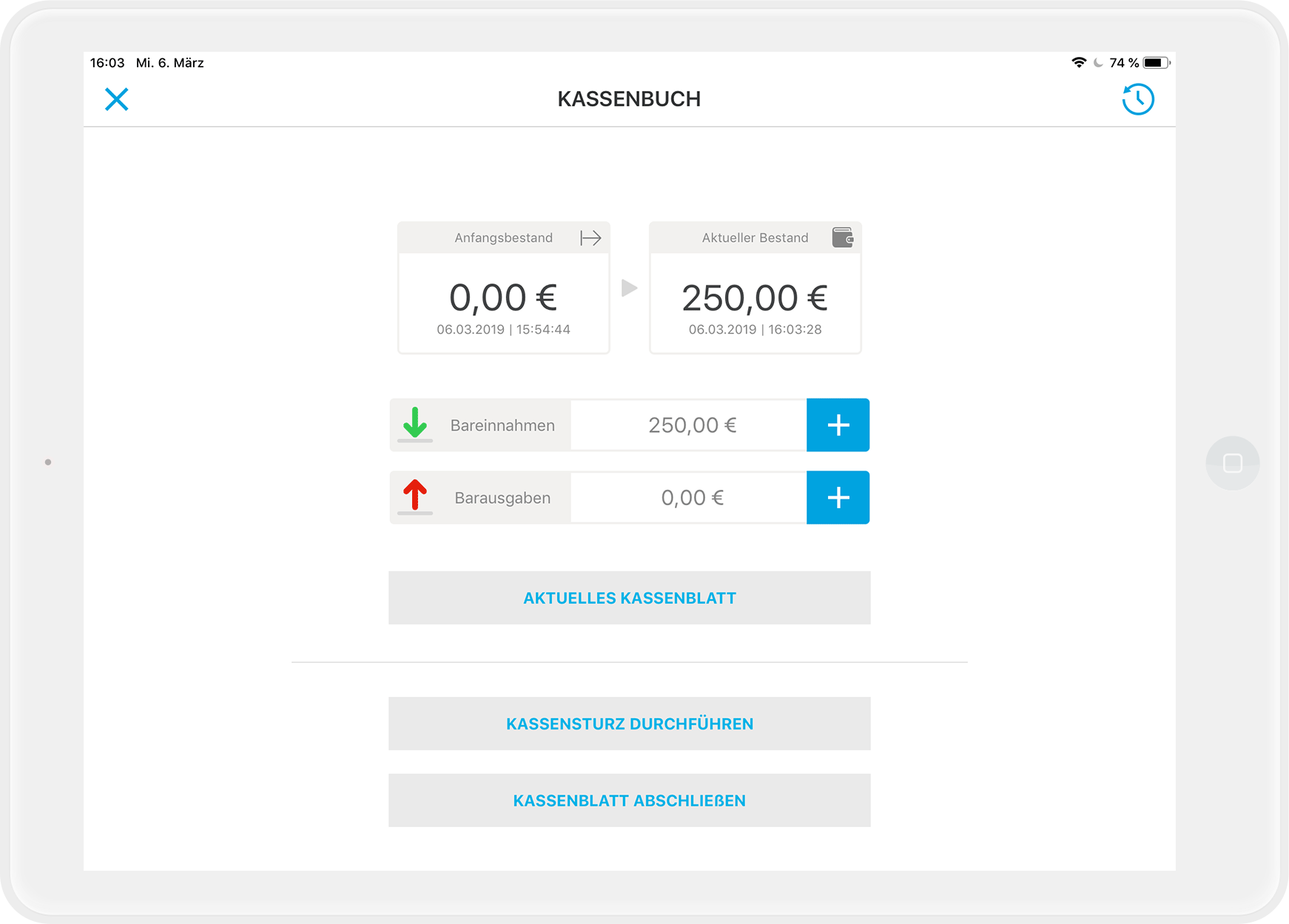
Automatic DATEV export
All manual cash transactions are automatically recorded in the correct format and integrated into your regular DATEV export. This allows your tax advisor to import the complete data set, including all cash inflows and outflows, directly into the accounting system.
Now you are ready to take off with your new cashbook.
Any questions?
I bought the cashbook in MY orderbird, but I don't see it in my app. Why?
It is most likely due to one of two things:
- You are working with an outdated version of orderbird. Your new cashbook requires at least orderbird version 6.1.0.
- You are looking for the cashbook on an iPhone or iPod. Your orderbird cashbook strictly requires an iPad for you to see it and work with it.
Regarding legal and tax advice
Please take note of the following information!
orderbird does not offer legal or tax advice. All information involving legal or tax aspects is in no way to be considered legal or tax advice.
However, to provide you with the most reliable guidance possible, our cooperation partner, the Steuerkanzlei Buder (https://steuerbuder.de) from Berlin, has reviewed the procedure for handling the orderbird cashbook described below and found it to be correct regarding tax-relevant aspects. Nevertheless, it is possible that this procedure may not apply specifically to you and your business.
Therefore, you must contact your tax advisor for a binding statement on how to correctly use the orderbird cashbook for your situation. Both orderbird and Steuerkanzlei Buder exclude any liability for the up-to-dateness, correctness, and completeness of the information provided here by orderbird regarding tax procedures.