How do I change tax rates (VAT) in my menu?

Table of Contents
The tax rates (VAT) are changing, and you need to update the VAT rates in your orderbird app, to avoid back taxes or other penalties. To do this, you manually change the VAT rates for articles or family groups in your menu. Plan some time and grab a cup of tea. You'll be tapping away in the orderbird app on your iPad.
In a nutshell
Option 1 - "Derive VAT" for items is activated
- Make sure all shifts are closed, and you have a stable connection to the Internet. Log in as admin in the orderbird app.
- Update the tax rates for each family group and save the changes.
- Then click on each item and make sure that the new tax rates have been adopted. Save the changes for all individual items.
That's how it looks when “Derive VAT” is activated:

Option 2 - "Derive VAT" for items is disabled
- Make sure all shifts are closed, and you have a stable connection to the Internet. Log in as admin in the orderbird app.
- Update the tax rates for each item and save the changes.
Step by step: Option 1 - "Derive VAT" for items is activated
Make sure all shifts are closed, and you have a stable connection to the Internet. Log in as admin in the orderbird app.
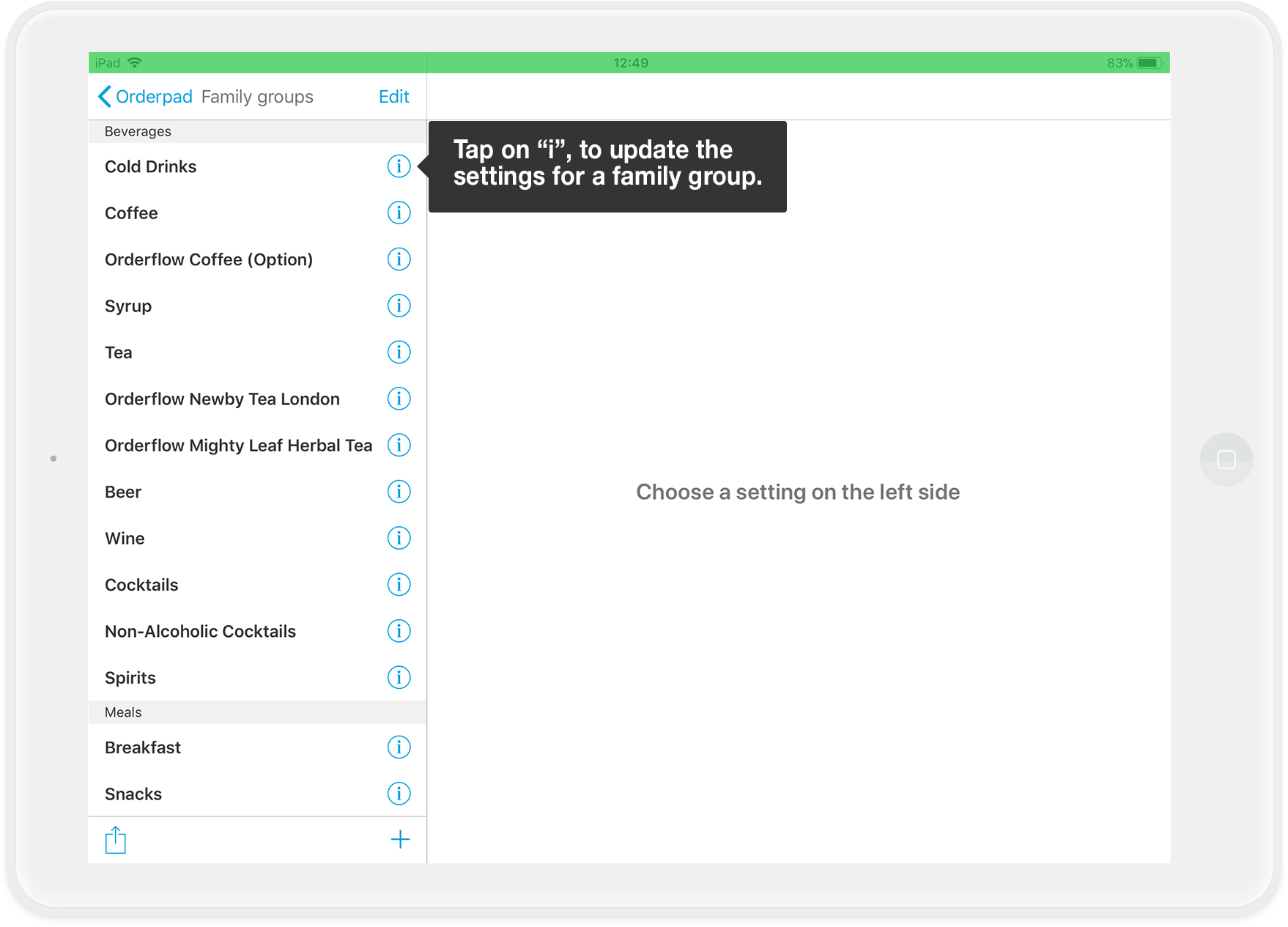
- Go to Settings>Orderpad>Menu card in the orderbird app. Tap on the small "i" behind a family group.
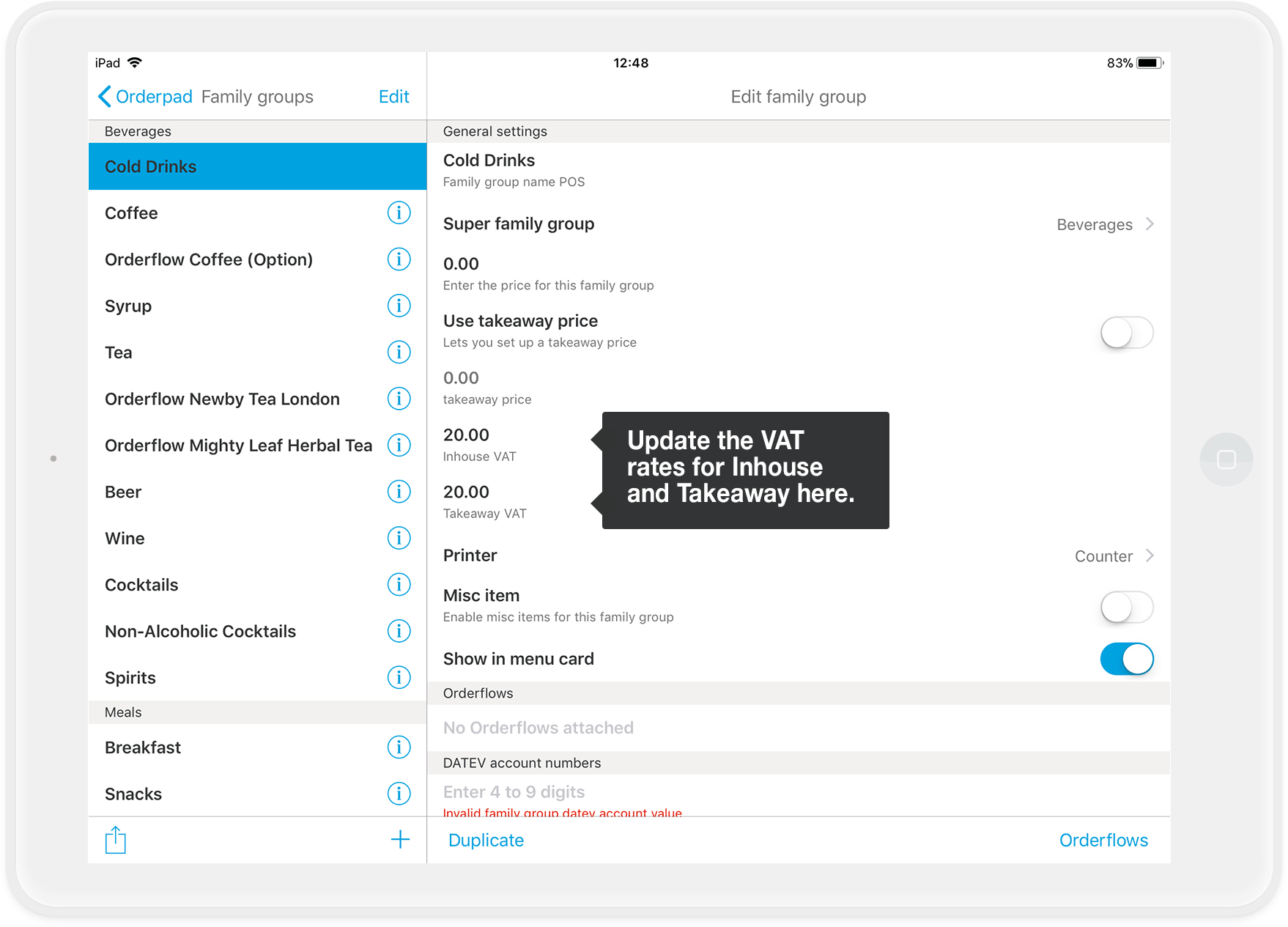
- Change the Inhouse and Takeaway VAT rates, respectively.
- Repeat steps 1 and 2 for each family group in your menu.
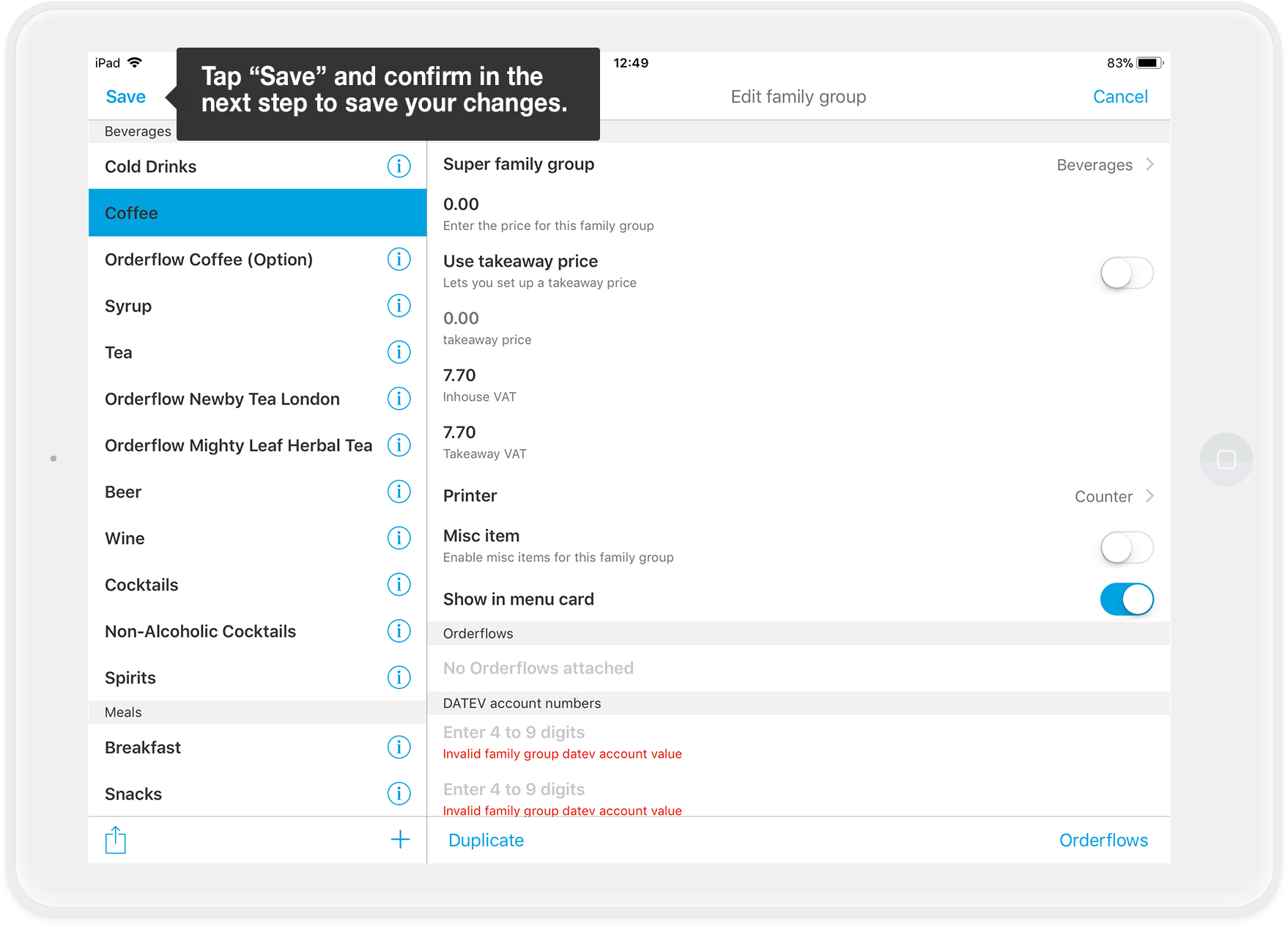
- When you have updated the tax rates for all family groups, tap "Save" in the upper left corner to save your changes. You don't have to save your changes for each family group individually. It is sufficient to save the changes once you have updated all family groups. This saves you a lot of clicks and it's faster!
Important
In the next step, you will save the changes again for each item. Tap on the first family group in your overview (under Settings>Orderpad>Menu card) and then on the first item.
- Check whether the changed tax rates has been adopted to the item. Adjust if necessary.
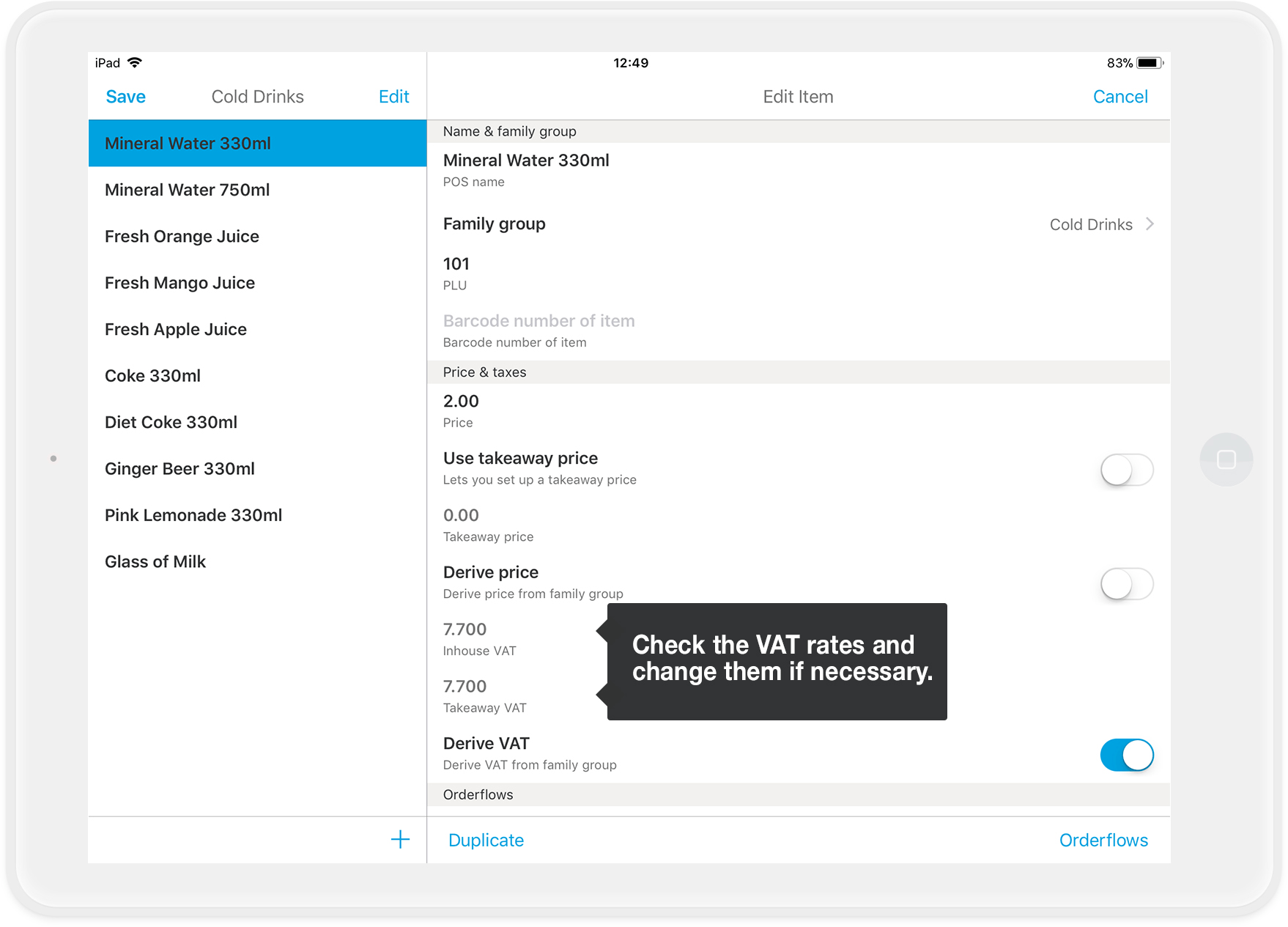
- Repeat step 6 for each item in the family group. When you have checked all items in a family group, tap "Save" in the upper left corner.
Again, you don't have to save the changes for each item individually. You only need to save your changes once you have updated all items within a family group. This saves you a lot of clicks and it's faster!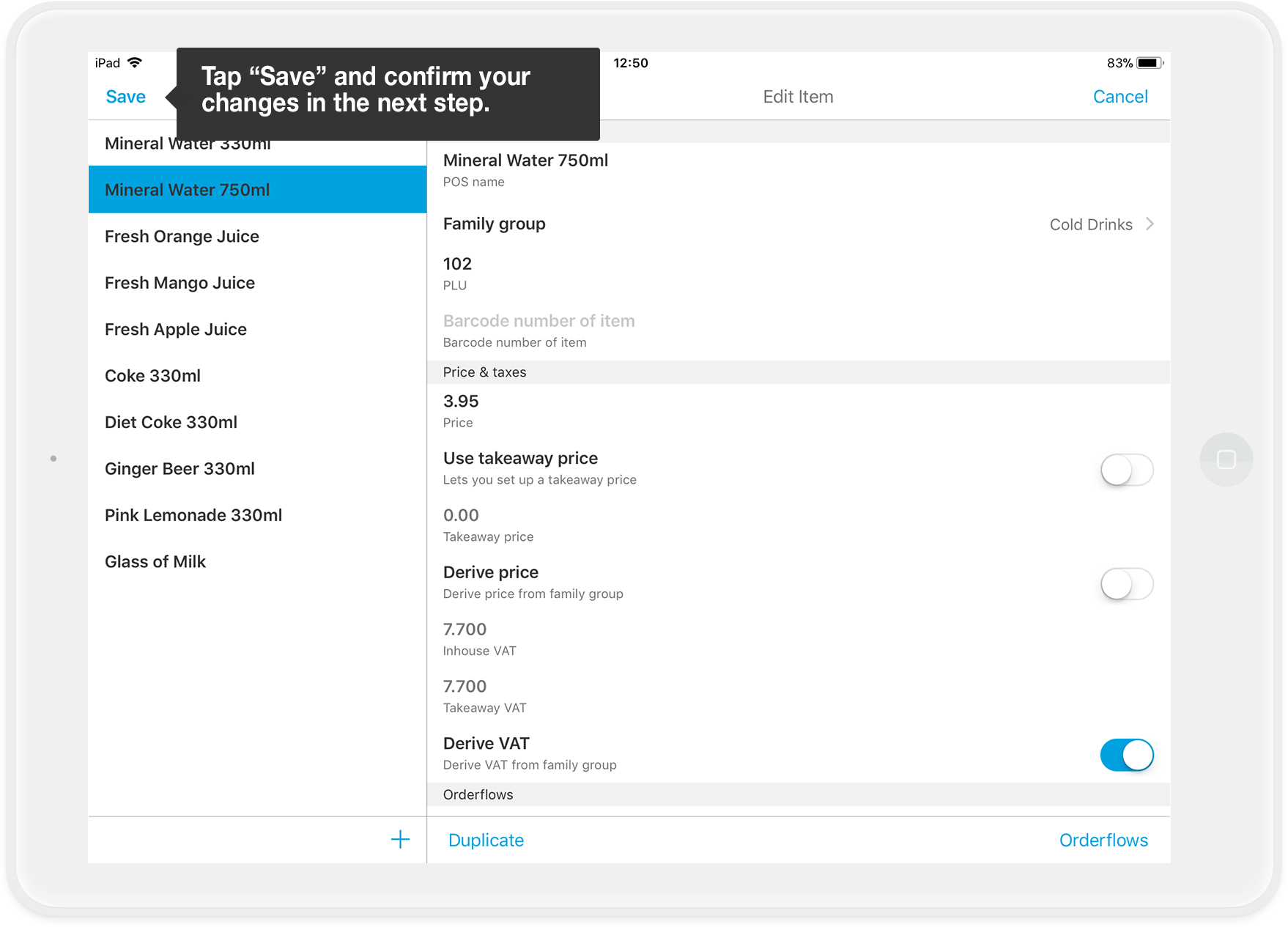
- Repeat steps 6 and 7 for each family group in your menu.
- All done!
Step by step: Option 2 - "Derive VAT" for items is disabled
In this case, you update the tax rates for each item individually. Make sure all shifts are closed, and you have a stable connection to the Internet. Log in as admin in the orderbird app.
- Go to Settings > Orderpad > Menu card and tap on a family group for which you want to update items.
- Update VAT rates for all items within the family group.
- Tap "Save" in the upper left corner of the screen, once you have updated all items within a family group. Otherwise, your changes will not take effect!
Again, you don't have to save the changes for each item individually. You only need to save the changes once you have updated all items within a family group. This saves you a lot of clicks and it's faster!
- Repeat steps 1 through 3 until you have updated all items in all family groups.
Please note: No changes in an open shift
Thou shall not make changes during an open shift
Quickly adjusting the price of coffee? Or changing an order flow? No problem, but please not during an open shift!
There are several reasons for this: changes during an active shift...
- ... can ruin your reports.
- ... are not compliant with tax regulations because you have an item with different prices within a single shift.
- ... can lead to technical issues and disrupt your workday unpleasantly.
Avoid the following changes during an open shift:
- items/family groups (including prices and tax rates)
- order flow
- roles, permissions, and users
- payment methods
- deleting printers
Additionally, avoid making simultaneous changes in MY orderbird and orderbird PRO outside a shift.
The golden rule
Always make changes to your menu during a closed shift and either on MY orderbird or directly in orderbird PRO, not simultaneously in both products! This way, you stay on the safe side.
Regarding Legal and Tax Advice
Regarding Legal and Tax Advice
Please note: orderbird does not provide legal or tax advice!
Everything we write reflects our experience and the experiences of our customers. Any information related to legal or tax aspects should not be considered legal or tax advice under any circumstances. Therefore, a procedure we describe may not be applicable to you or your business specifically.
For definitive statements, please consult your tax advisor. orderbird disclaims any liability for the accuracy, correctness, and completeness of the information provided here regarding tax-related procedures.