4.3. DATEV account numbers for revenues from product groups

Table of Contents
Please note
The change to the DATEV account numbers are effective immediately.
Below you will find assistance with the DATEV settings for your product groups in the app according to SKR 03. In contrast to the DATEV accounts, which simply represent the money transit, different VAT rates are also assigned to the DATEV account numbers for your product groups. To avoid errors here, you should have already checked your stored tax rates in the first step. If not, you can do it now: Check the tax rates in your menu.
Furthermore, the completed DATEV template from your tax advisor will also help you here.
Planning the Assignment of DATEV Account Numbers
When assigning account numbers, please pay attention to the following:
- To be able to evaluate the sales of a product group separately, the account number must not be assigned multiple times. Otherwise, the sales from different product groups will merge into one DATEV account.
- When assigning the DATEV accounts, always ensure that the account number matches the taxation of the items in the product group.
- You must observe the exceptions.
Step by Step
Making DATEV Settings for Your Product Groups in the App
-
In the orderbird app, go to Settings > Order Block > Menu and tap the small "i" next to the product group for which you want to adjust the DATEV account numbers.
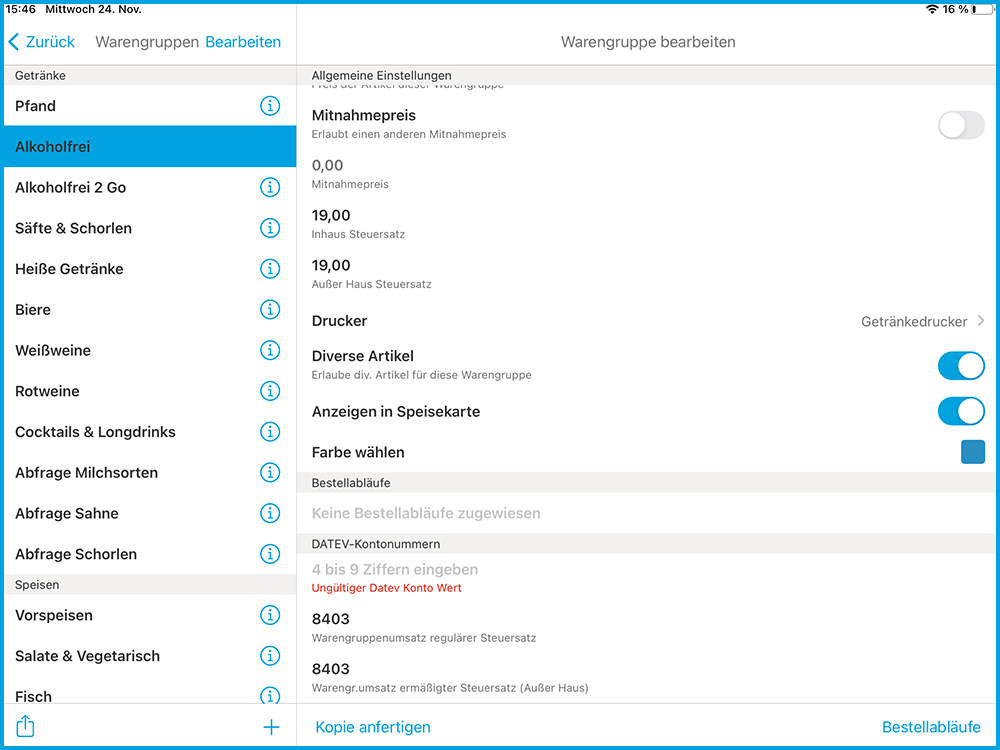
- Assign a DATEV account number from SKR 03. You can choose from the following account numbers:
| Product Group | Available Account Numbers in SKR 03 |
| Product groups containing exclusively items with 19 % VAT | 8400 to 8419 |
| Product groups containing exclusively items with 7 % VAT | 8300 to 8309 |
Repeat these steps for every product group in your menu.
Almost done! Let's move on to the last possible setting in Step 4.4. Considering Tax Special Cases (Deposit, Vouchers, Milk-Containing Drinks, ...) in the DATEV Settings.