Starting Fallback Mode
Learn strategies to transition your business into fallback mode quickly and effectively while keeping disruption to a minimum.

Table of Contents
Internet issues or a disrupted connection? With Fallback Mode, you can continue working even without a connection. With Fallback Mode, you can keep working even without a connection. You should only use Fallback Mode when all else fails. Before you turn it on, please check the points in the red box below. An overview of which features remain available in Fallback Mode and which do not can be found here: What works in Fallback Mode, and what doesn’t?
⚠️ Use Only in Absolute Emergency ⚠️
The Fallback Mode is intended only for absolute emergencies when nothing else works! Before using it, check these 4 tips to avoid Fallback Mode:
📶 Network Check
Are you connected to the correct network? → Solve Network Problems
🌐 Internet Check
Is the internet working? ➜ Search "Weather" in your browser. No results or an error message? ➜ Error message: Server not found
🔌 Check Cabling
Are all cables between the router, repeaters, and printers properly connected?
🔃 Restart Devices
Restart all routers one by one – starting with the internet router!
Video Guide
Start Fallback Mode and Perform Table Assignment (German):
Step 1: Checked Solutions?
✅ You have checked the four steps in the red box above and cannot avoid using the Fallback Mode.
✅ You understand that there will be operational limitations (What works in Fallback Mode, and what doesn’t?)
Step 2: Start Fallback Mode
Disable "Table Synchronization"
-
First, turn on Airplane Mode and turn off Wi-Fi on your Apple device. orderbird PRO Main Menu > Swarm > "Table sync".
Repeat this on every device!
- Follow orderbird PRO’s instructions, tap on "Roger that!".

3. Follow the instructions and tap “Continue”.

Start Table Assignment
- Place all devices side by side and tap on "Start comparing".

- From this point, you can no longer cancel! Read the instructions on the display and tap “Start comparing”.

-
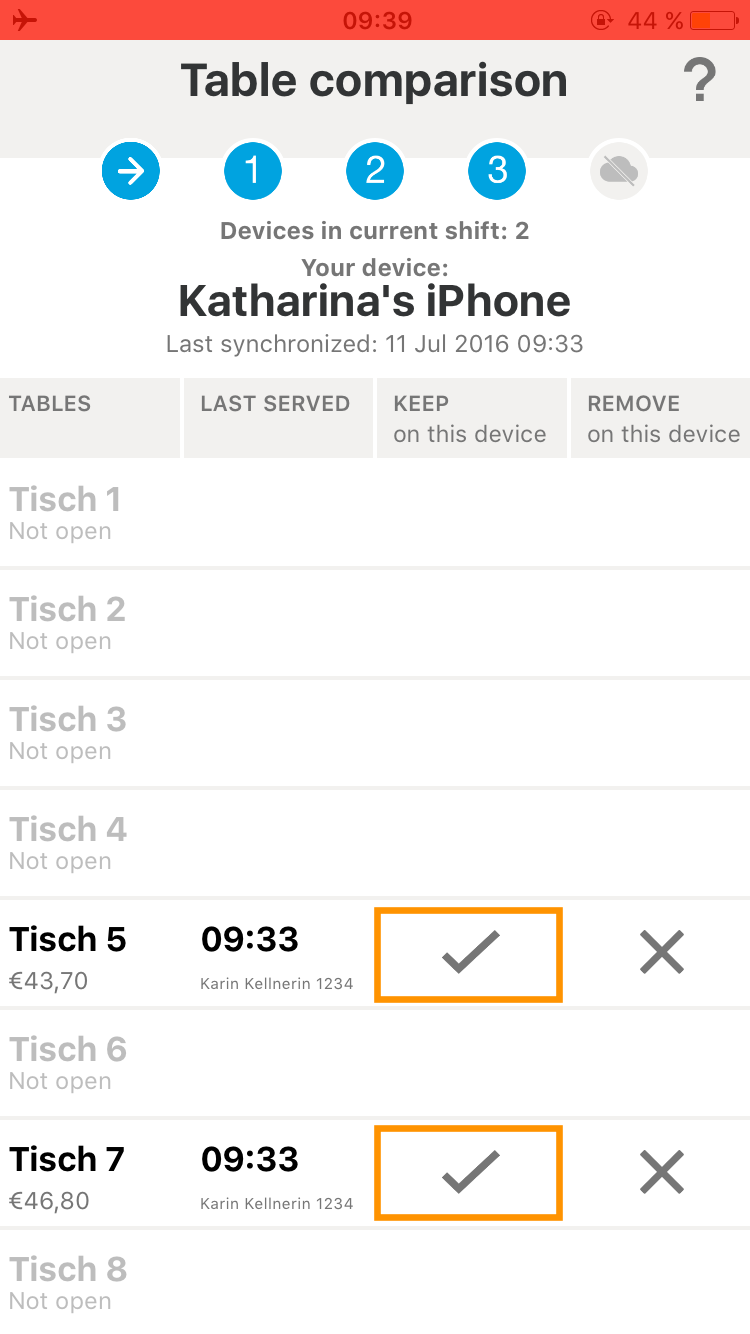
Assign each open table to a device to ensure proper billing.
- Go through the entire table list.
- Select the tables that should remain on the device (usually the one with the last booking).
- ✅ Check to keep or ❌ uncheck to delete.
- Verify that each open table is assigned to exactly one device.
Example: The order from "Theke" ("bar") is assigned to the device named "Kat's iPad", while the orders from “Tisch 5” and “Tisch 7” are assigned to the device named "Katharina's iPhone". - After that, turn off Airplane Mode and turn Wi-Fi back on.

Confirm Start of Fallback Mode
Tap "Work Offline" to enter Fallback Mode. Ready! Now you are working in Fallback Mode.
